¶ Your Gallery
Every artwork you create in MonAI is added to your personal gallery so you can find it again later. This article covers everything you can do there.
Note: You need a MonAI account for your art to show up in your gallery across sessions. If you're not signed in, your creations won't be tied to anything. To create an account, go to the 3-dot menu → Login → Register.
Important: The gallery is a convenience, not long-term storage. We can't guarantee that artworks will stay available indefinitely — if there's a piece you love, download it to your device right away. For more on this, see Image Storage.
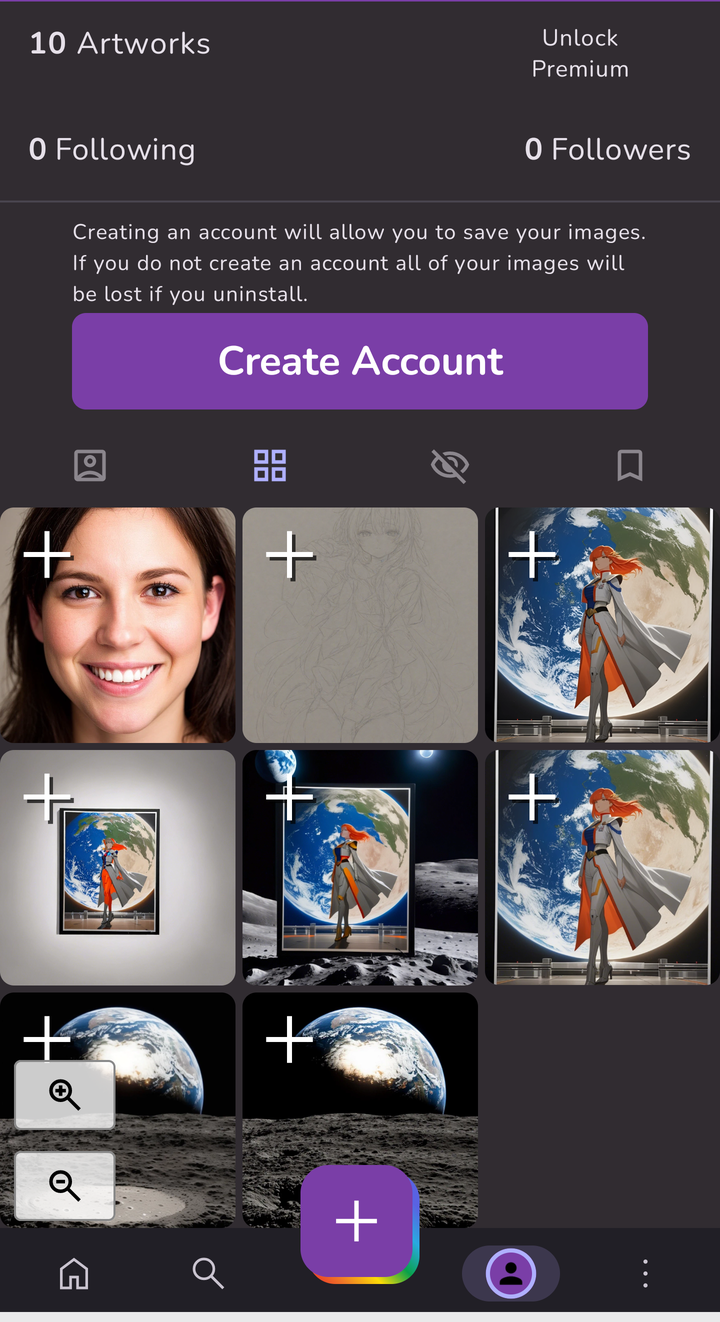
¶ The Three Gallery Tabs
At the top of the gallery you'll see three tabs for switching between views of your art. Only you can see your Public and Private galleries — other users only see your Published gallery when they visit your profile.
| Tab | Icon | What it shows |
|---|---|---|
| Public | Grid of squares | The default view. Every artwork you've created, including ones you've published, but not ones you've hidden or deleted. |
| Published | Person in a box | Only the artworks you've chosen to share. These appear on your public profile and are submitted to the MonAI home feed. |
| Private | Eye with a slash | Artworks you've hidden from public view. A place to keep art you don't want to publish but also don't want to delete. |
Here is what each tab looks like when it's selected (the active tab is highlighted in purple):
Published tab selected:

Public tab selected:

Private tab selected:

Tap any tab to switch to that view. Your most recent artworks always appear at the top, and older art is further down.
¶ Zooming In and Out
The plus (+) and minus (−) buttons in the lower-left corner of the gallery change how many artworks fit on screen at once.
- Plus (+): Shows fewer artworks per row, making each tile larger. The maximum zoom shows a single artwork per row.
- Minus (−): Shows more artworks per row, making each tile smaller. You can fit up to 4 artworks per row at the lowest zoom level.
Use the minus button if you want to see a lot of your work at once, or the plus button if you want to look at one artwork in more detail without tapping into it.
¶ Actions You Can Take on an Artwork
Tap any artwork to open it in the detail view, where you can:
- Remix it — generate a new variation with a new seed
- Edit it — change the prompt, style, or settings and regenerate
- Download it to your device
- Share it
From the detail view, and from some bulk-action buttons in the gallery, you can also:
| Action | Button | What it does |
|---|---|---|
| Publish | Person with + | Adds the artwork to your public profile and submits it to the MonAI home feed. The artwork also stays in your Public gallery. |
| Hide | Eye with a slash | Moves the artwork from your Public gallery to your Private gallery. Hidden artworks are not visible to anyone else. |
| Show | Eye (in Private gallery) | Moves the artwork back from Private to Public. |
| Delete | Trash can | Permanently removes the artwork from all galleries. You'll be asked to confirm — deleted art cannot be recovered. |
[SCREENSHOT PLACEHOLDER: the action buttons shown on or near an artwork — publish, hide, delete]
¶ Selecting Multiple Artworks at Once
When you zoom out (using the minus button), a small white checkbox appears in the upper-left corner of each artwork. Tap any checkbox to enter multi-select mode.
[SCREENSHOT PLACEHOLDER: gallery zoomed out showing the small checkbox in the corner of each artwork]
Once at least one artwork is selected, the top of the screen changes to a bulk-action bar showing how many artworks you've selected and what you can do with them:
- Delete — permanently delete all selected artworks (with confirmation)
- Hide (in the Public gallery) — move all selected artworks to Private
- Show (in the Private gallery) — move all selected artworks to Public
- Unselect All — clear your selection and return to the normal view
[SCREENSHOT PLACEHOLDER: the bulk-action bar at the top of the gallery with multiple artworks selected]
¶ Publishing: What It Means
When you tap the Publish button (person with +):
- The artwork is added to your public gallery (the Published tab)
- It will be submitted to appear in the MonAI home feed, where other users may see it
- Anyone who visits your profile will be able to see it
- The artwork stays in your Public gallery too — publishing doesn't remove it from anywhere
There is no "unpublish" button. To remove an artwork from your public gallery, you have to delete the artwork altogether. This will remove it from every gallery — Published, Public, and Private.
¶ NSFW-Flagged Artworks
If an artwork has received an NSFW warning, it stays in your personal gallery but is not visible in:
- The MonAI home feed
- Your public profile (even if you've published it)
You can still see and manage it yourself. Learn more about NSFW warnings in the FAQ.
¶ When You Sign Out
Signing out hides your gallery from the app. When you sign back in, your art appears again.
If you haven't made an account yet, your creations aren't tied to anything, so they can be lost if you uninstall the app, clear app data, or switch devices. Signing in keeps your gallery accessible across devices, but see the note below on safekeeping.
¶ Keeping Your Art Safe
The gallery is a convenience feature to help you browse what you've made — it's not a guaranteed long-term archive. If you create something you want to keep, the reliable way to hold onto it is to download the file to your device (or save it to cloud storage). That way it's yours, independent of the app or your account.
Full details are on the Image Storage page.
¶ When You Delete Your Account
Deleting your account permanently deletes all of your artworks from all galleries. There is no way to recover them afterwards. See Deleting your Account for details.
¶ Privacy: Who Can See Your Gallery?
Only you can see your Public (personal) and Private galleries. Other users only ever see the artworks you choose to publish — those appear on your public profile and may appear in the MonAI home feed.
The MonAI team does not browse users' private galleries. The only cases where we would look at a specific account's content are:
- You ask us to (for example, to help troubleshoot a problem)
- We're investigating a report of illegal content or serious abuse
- We're legally required to
There is no routine or casual access by anyone.
¶ Troubleshooting
My gallery is empty even though I've created art. Make sure you're signed in to the account you used to create the art. If you generated images before making an account, try closing and reopening the app after signing in.
The gallery scrolls back up when I try to scroll down. This is a known bug. A fix is rolling out in an upcoming app update. In the meantime, you can use the minus button to zoom out and fit more artworks on screen, which reduces how far you need to scroll.
I can't find an older artwork. Artworks are ordered newest-first. Scroll down to find older work, or use the minus button to zoom out and see more at a glance. If an artwork is missing entirely, check your Private and Published tabs — it may be in a different gallery.