
Many MonAI features start from a picture: an Initial Image, an AI Image Edit, Inpainting, Image Prompts and ControlNet. Wherever MonAI asks for a picture, it shows the same choices for adding one. This page explains each choice and when to use it.
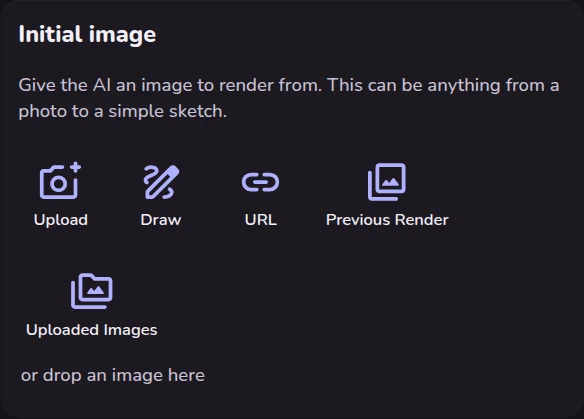
¶ Where to add an image
- The Image button under "Write a description" on the Create screen. After you pick a picture, MonAI asks how you want to use it: as an Initial Image, for an AI Image Edit, for Inpainting, as an Image Prompt or for ControlNet.
- Advanced options, in the Initial image, Edit image, Image Prompts and Controlnet sections, when you already know how you want to use the picture.
¶ The choices
| Choice | What it does | Use it when |
|---|---|---|
| Upload (Phone Storage on a phone) | Picks a picture from your computer or phone. MonAI makes large photos smaller before it uploads them. | The picture is already on your device. This is the easiest choice and always works. |
| Camera (phones only) | Opens your camera so you can take a photo now. | You want to use something in front of you, such as a drawing on paper. |
| Drop an image here (computers only) | Drag a picture file from your computer onto the box. | The picture is open in a folder on your computer. |
| Draw | Opens a blank square canvas to draw on. | You want to sketch a rough layout or shape for the AI to follow. A simple sketch is enough. |
| URL | Uses a picture from the internet, from a link to that picture. | The picture is online and you don't want to save it first. See How to use the URL option. |
| Previous Render | Lists the pictures you have made in MonAI. | You want to change or build on one of your own creations. |
| Uploaded Images | Lists pictures you have uploaded before, so you can reuse them without uploading again. | You use the same photo for several creations, such as a face or a pose. |
On the MonAI Android app the choices are Phone Storage, Unsplash, Draw, URL and Previous Render. Unsplash lets you choose a free photo from Unsplash without leaving the app.
¶ How to use the URL option
The URL option needs a link that opens only the picture, not a web page that shows the picture. Most links you copy from the address bar are links to a page, so they won't work.
¶ On a computer
- Right-click the picture itself.
- Choose Copy image address (Chrome, Edge or Safari) or Copy Image Link (Firefox). Don't choose Copy image: it copies the picture, not its link.
- In MonAI, tap URL, paste the link and tap OK.
¶ On a phone
Phones often show only Copy image, which won't work. This works on any phone:
- Press and hold the picture and choose Open image in new tab.
- Go to that tab. It shows only the picture.
- Tap the address bar and copy the address.
- In MonAI, tap URL, paste the link and tap OK.
¶ Check the link first
Paste the link into a new browser tab. If you see only the picture on a plain background, it will work. If you see a web page with menus, text or buttons, it won't.
| Works | Doesn't work |
|---|---|
|
|
Watch out: MonAI can't always tell that a link isn't a picture. If it isn't, the AI gets a plain black picture instead of yours. If your result looks dark or ignores your picture, check the link, or save the picture and use Upload instead.
¶ Questions
¶ How do I get a link for the URL option?
On a computer, right-click the picture and choose Copy image address. On a phone, press and hold the picture, choose Open image in new tab, then copy the address from that tab's address bar.
¶ Why doesn't Copy image work with the URL option?
Copy image copies the picture itself, not its link, so there is nothing for the URL box to use. Use Copy image address, or open the picture in a new tab and copy the address.
¶ Why did my URL picture come out black or get ignored?
The link probably opens a web page, or the site blocks downloads. MonAI then uses a plain black picture. Check that the link opens only the picture in a new tab, or save the picture and use Upload.
¶ What is the difference between Upload and Uploaded Images?
Upload adds a new picture from your device. Uploaded Images lists pictures you have uploaded before, so you can use them again without uploading them a second time.
¶ Can I use a picture I made in MonAI?
Yes. Choose Previous Render and pick one of your creations, for example to use it as an Initial Image or to edit it.
Source: the MonAI wiki · Updated · First published