¶ Editing a single image with Qwen Image Edit
Version: 2511
If you're not familiar with Qwen, you may want to check out this handy guide to the Qwen Lighting model.
Qwen Image Edit can be used with two reference images. For more on that, check out Qwen Reference Images.
¶ Things you can do with Qwen Image Edit:

1) Qwen is great with character consistency, moving a character to a new setting, even changing poses.
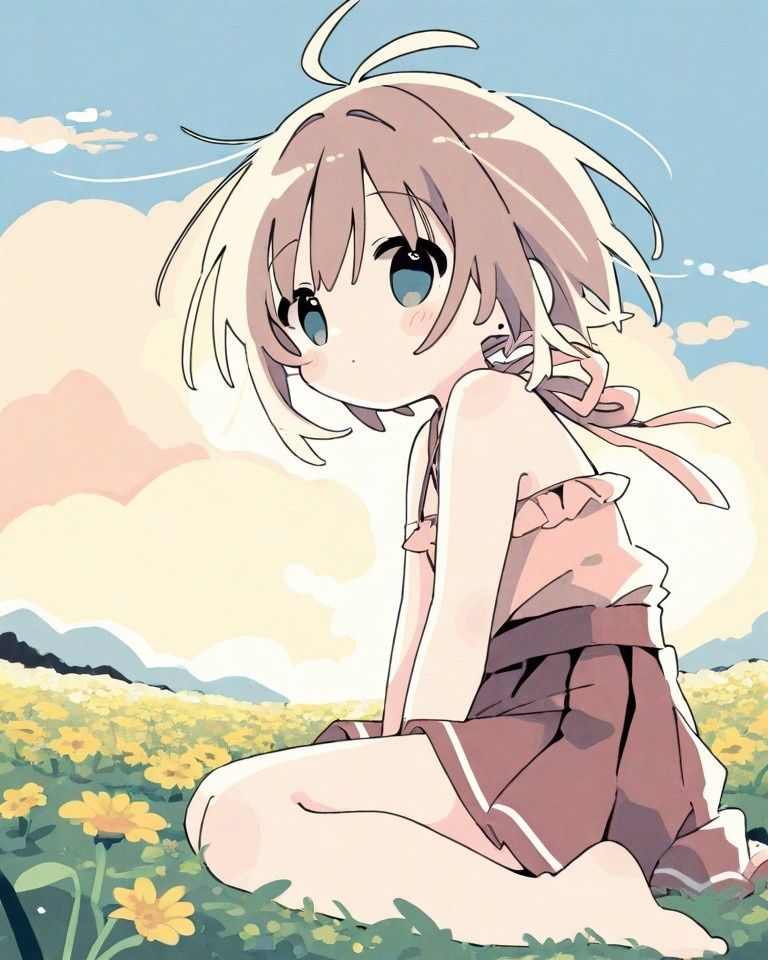 (Using the above image) |
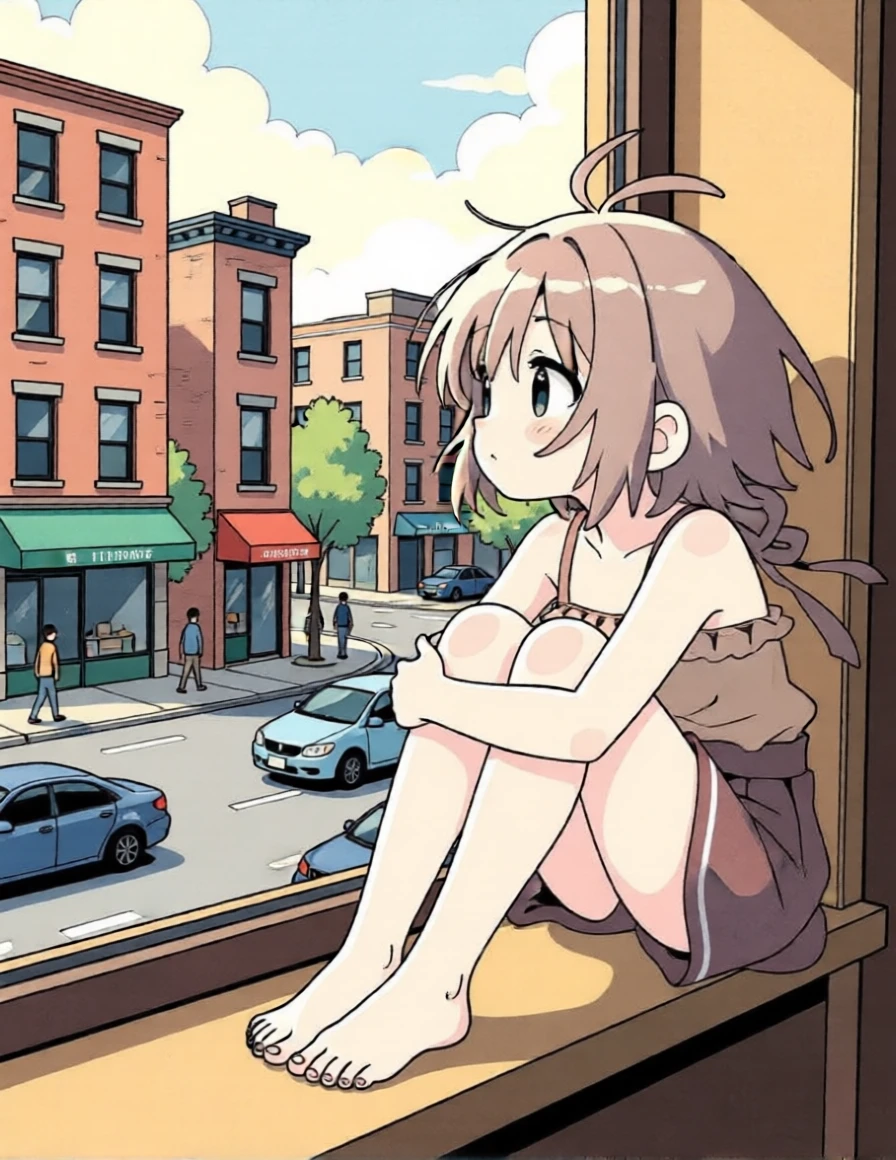 |
| (Using the above image) Prompt: this girl should be ice skating on a pond surrounded by a string of lights with a snowy winter scene in the background. she should be gracefully spinning on one foot. Negative Prompt: - Guidance Scale: 2.0 |
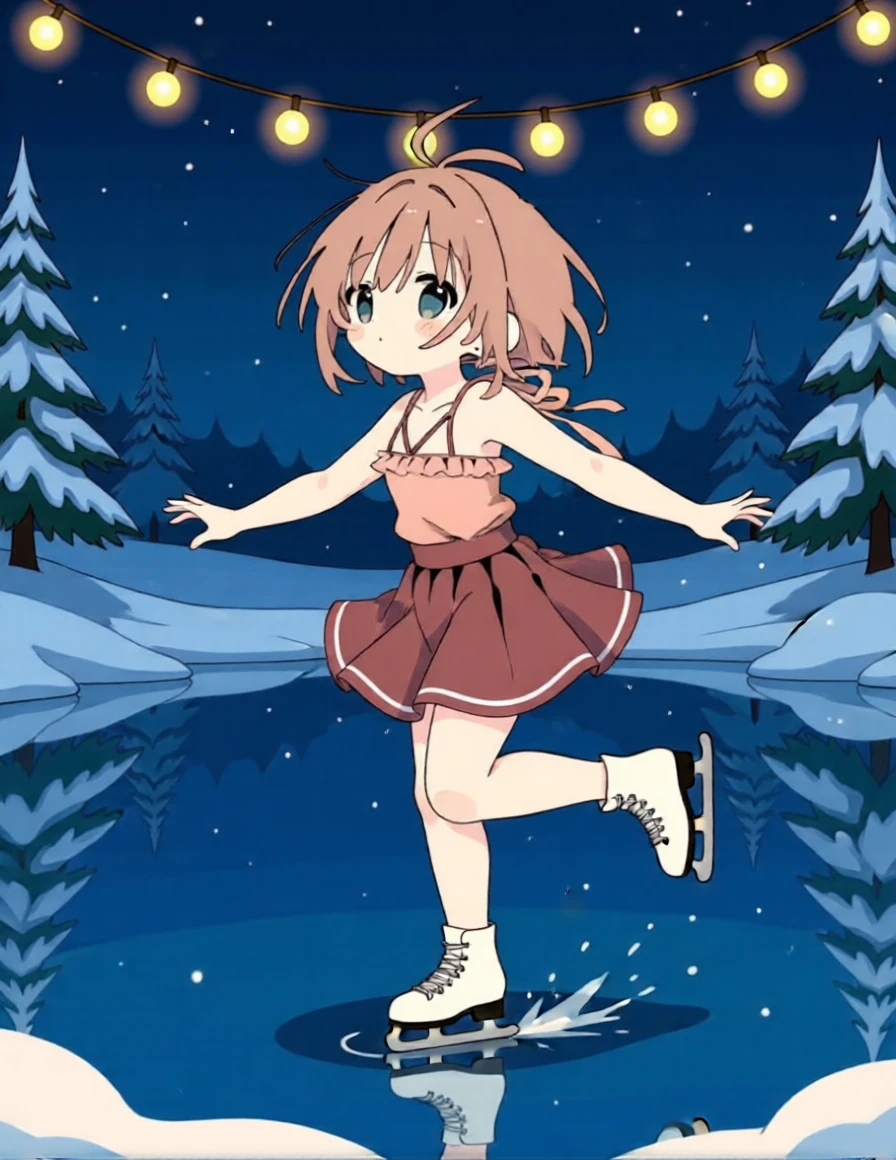 |

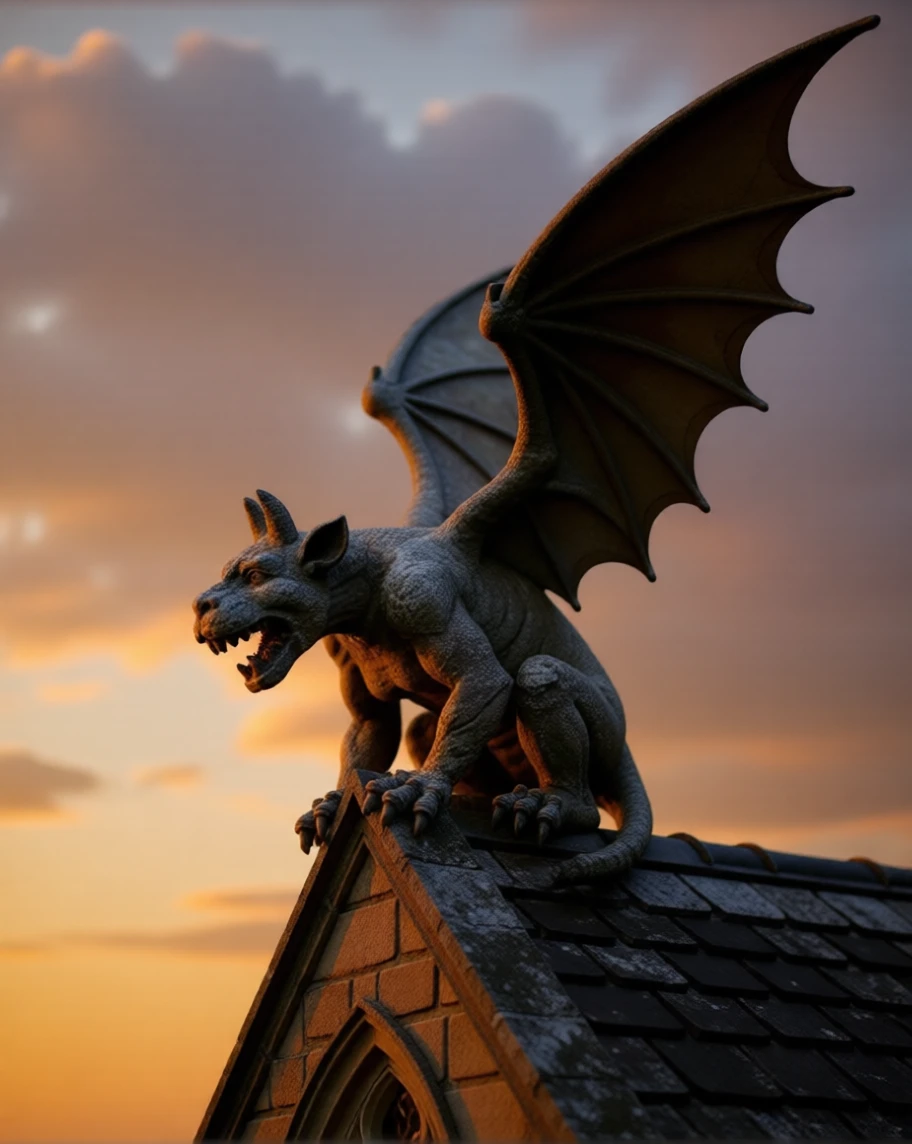
2) Rotate the subject of an image
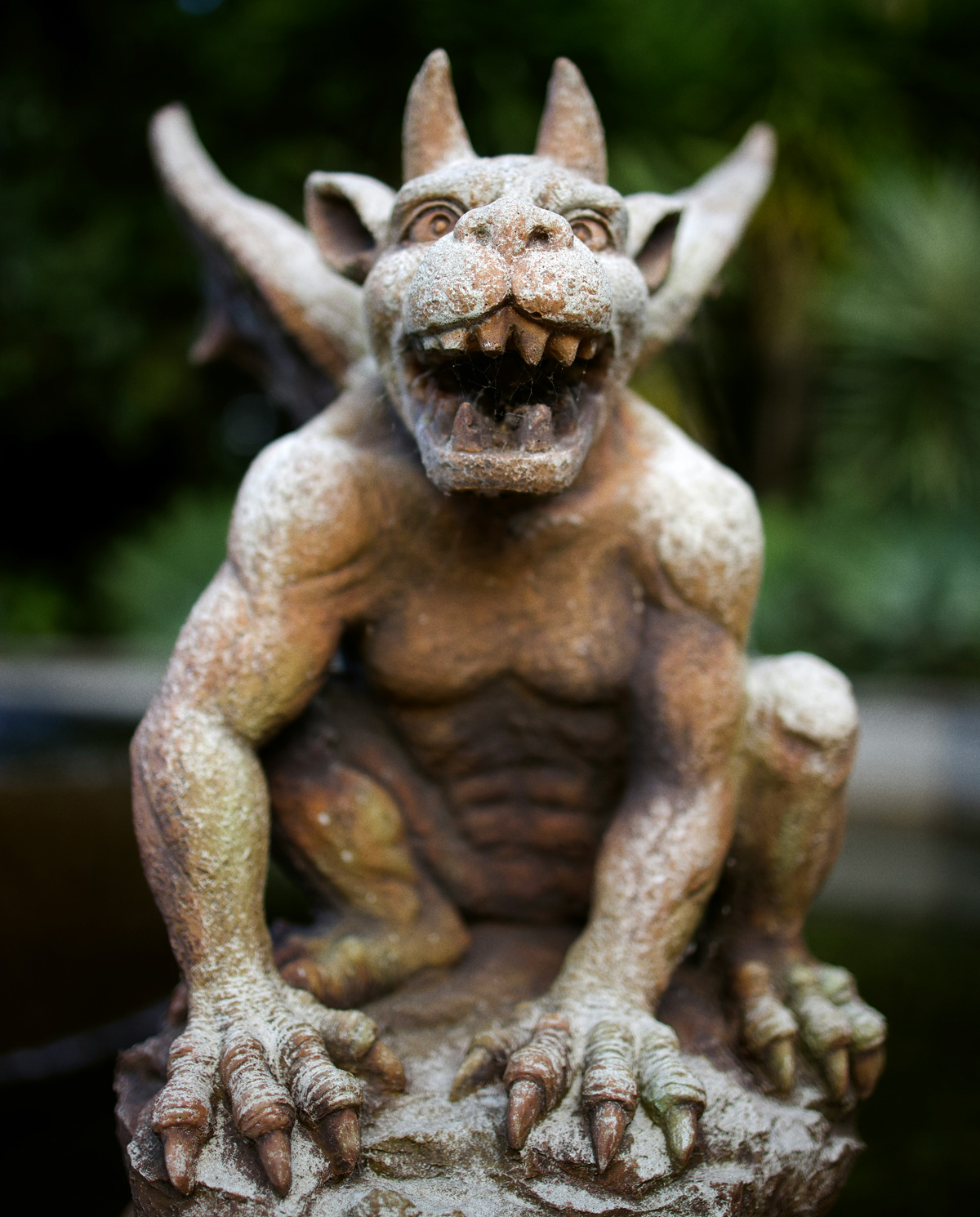 (Using the above image) |
 |
¶ 3) Update vintage images and edit portraits
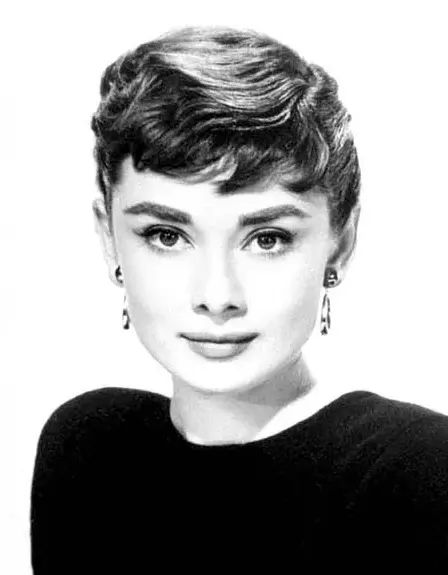 (Original image, Audrey Hepburn) |
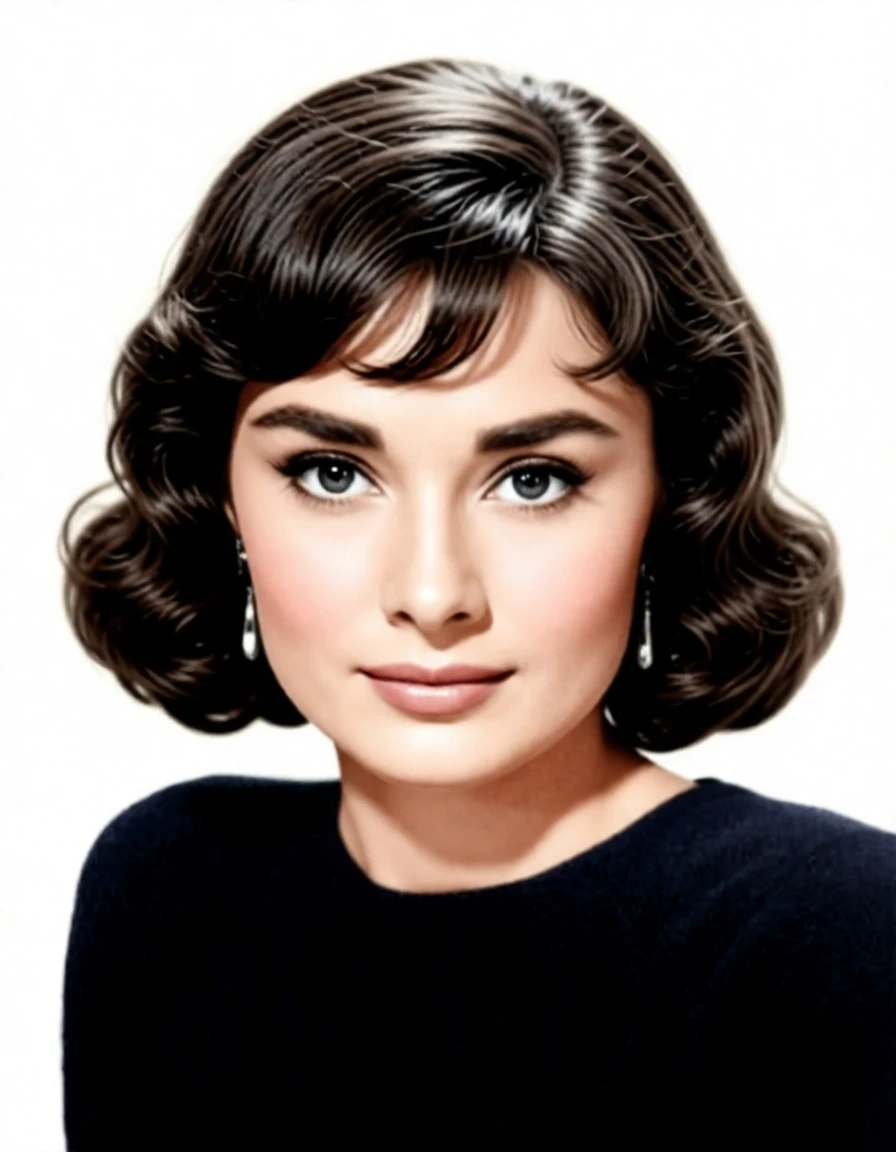 Prompt: color this photo and show her with a wavy bob haircut |
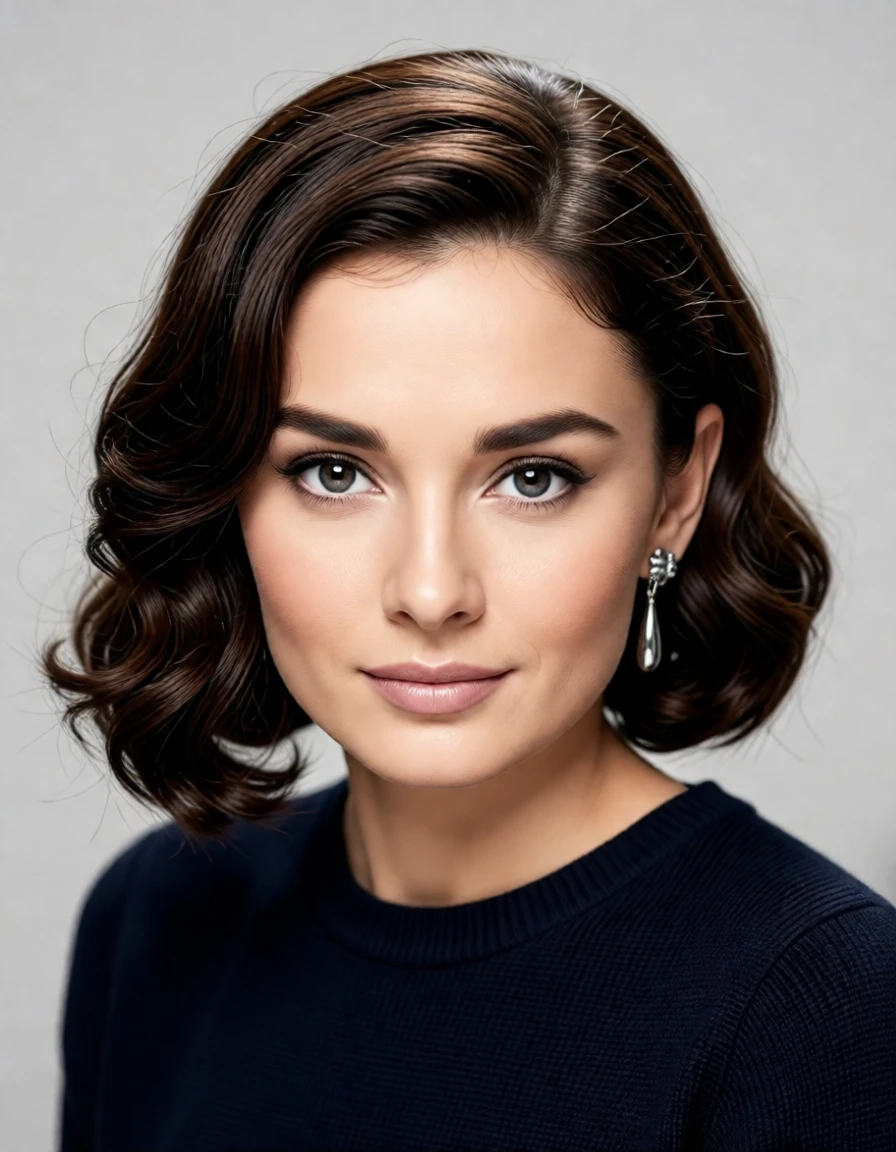 Prompt: color this photo, make it a modern high-resolution digital photograph, and show her with a modern wavy bob haircut |
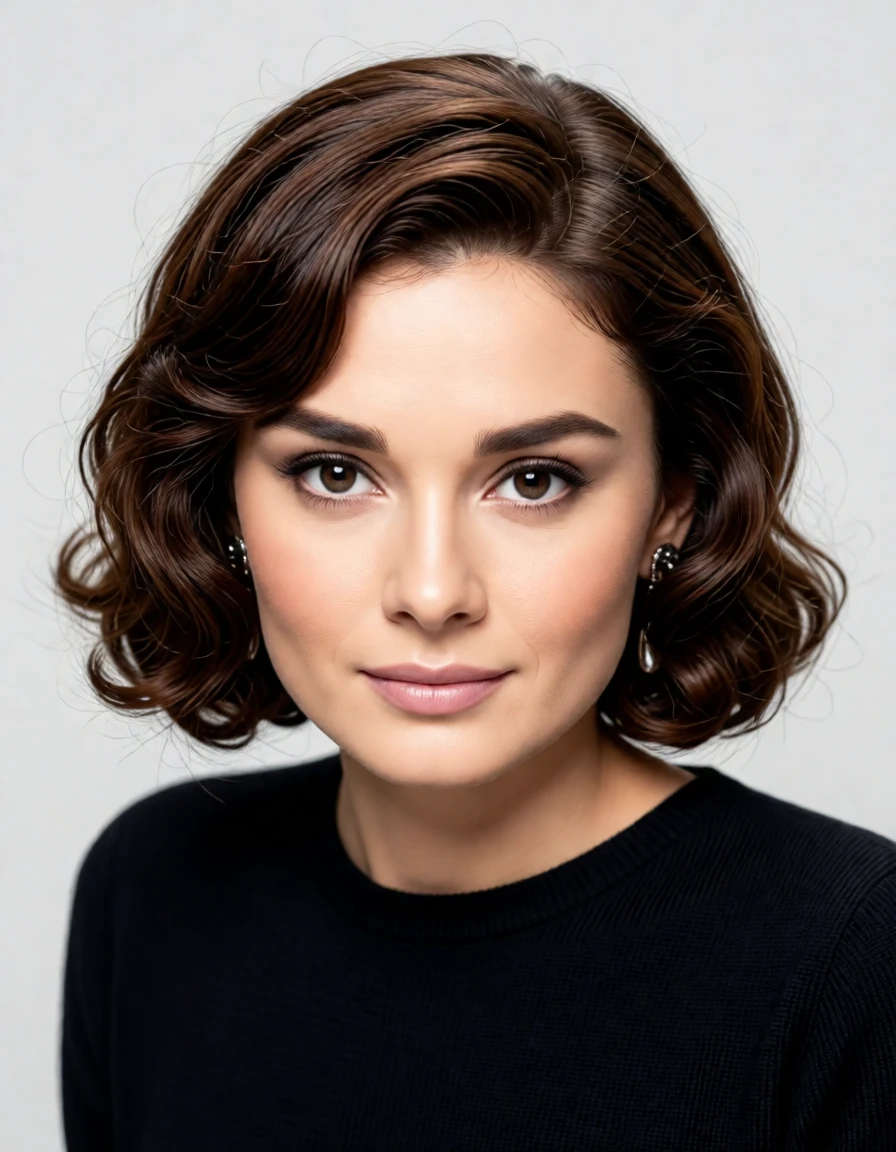 Guidance Scale: 1.2 |
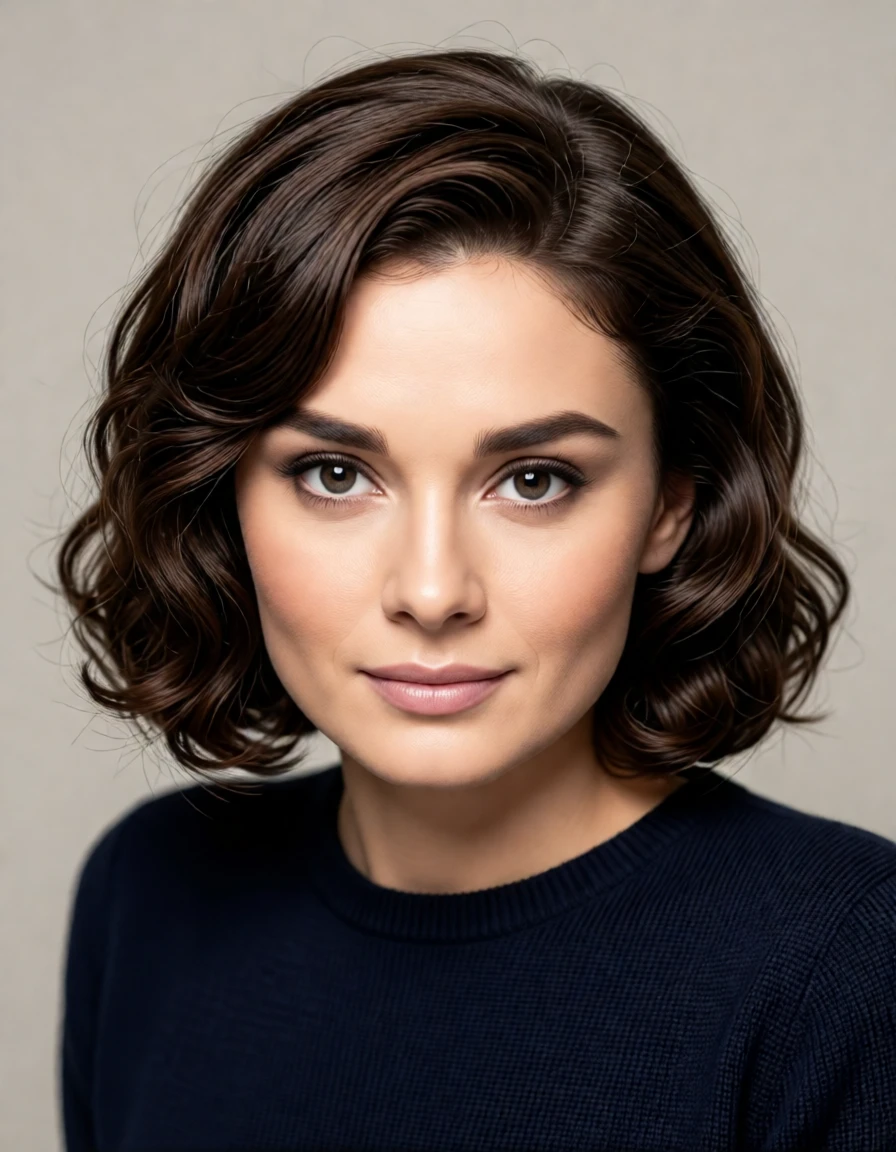 Guidance Scale: 1.8 |
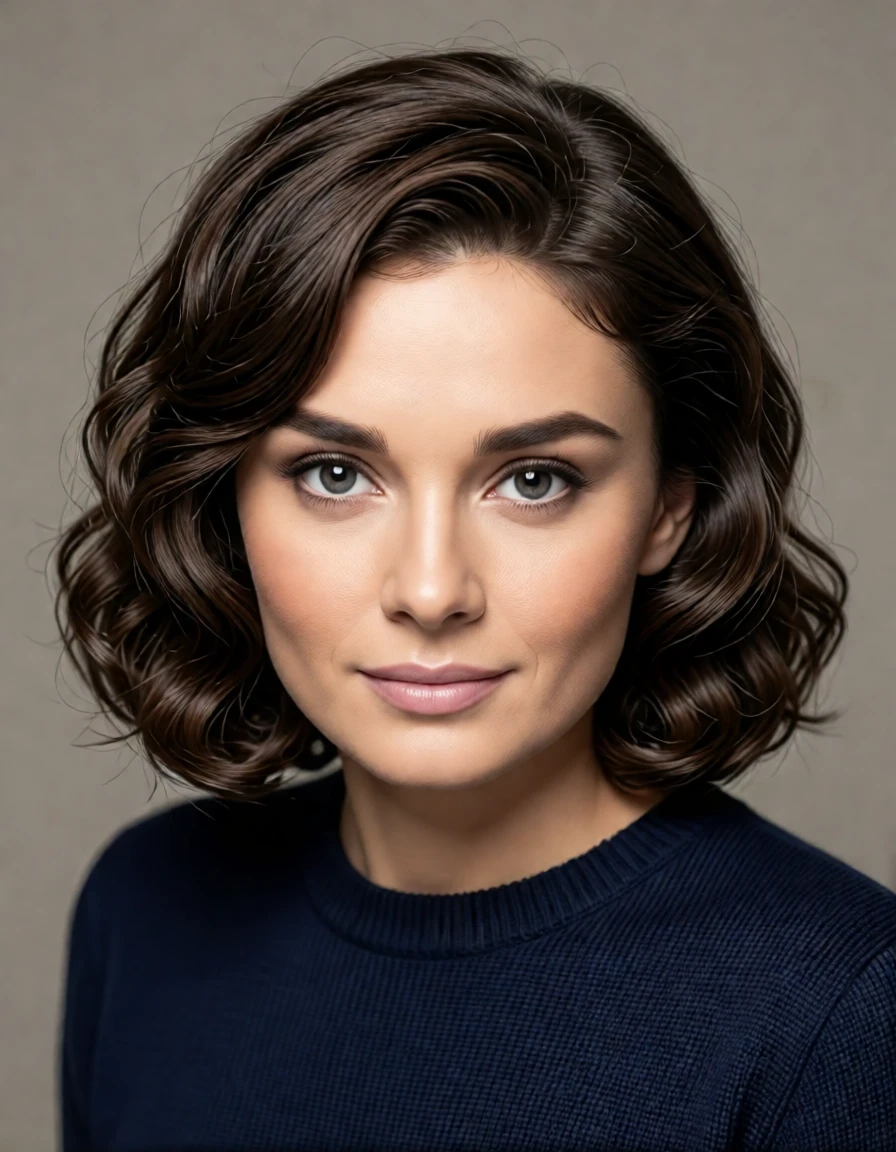 Guidance Scale: 2.5 |
| All 3 of the images above use the same prompt. The only difference is the guidance scale. Prompt: color this photo, make it a modern high-resolution digital photograph without changing her facial features, and show her with a modern wavy bob haircut |
||
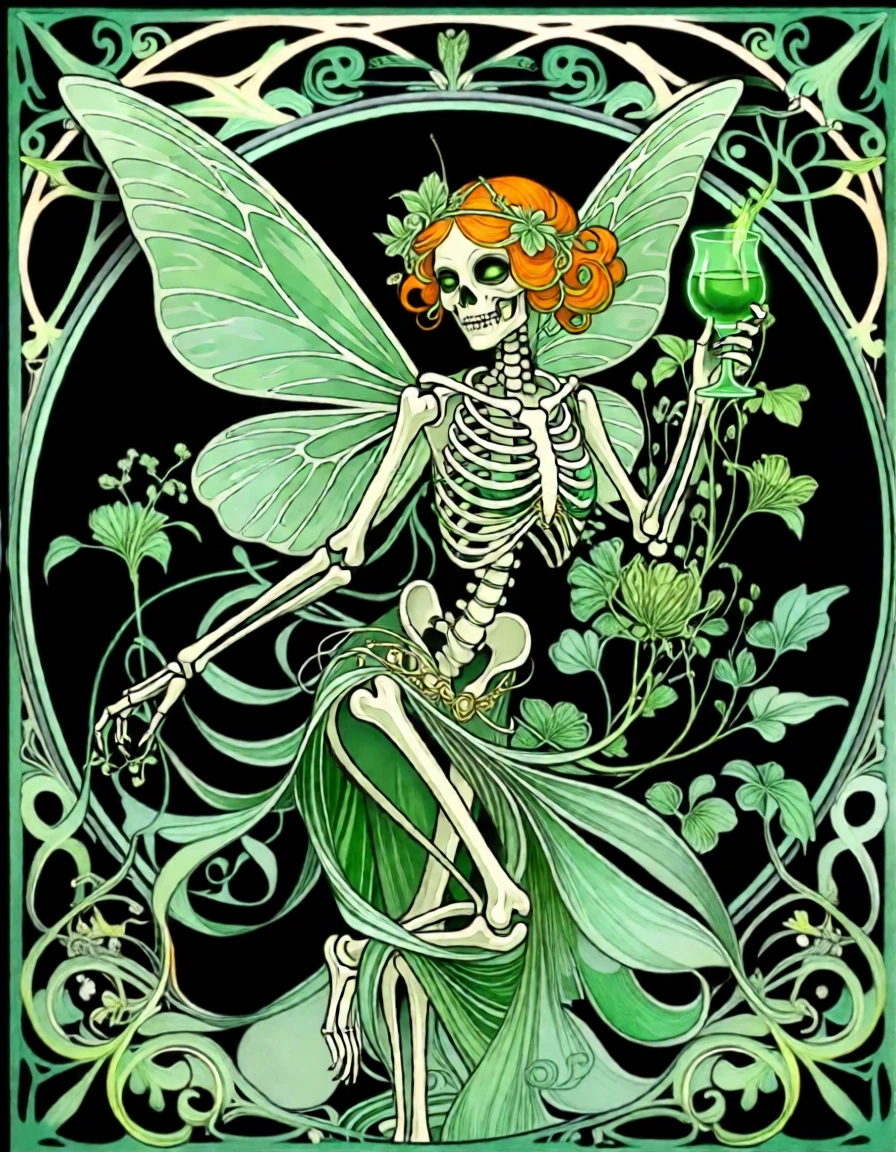
¶ 4) Change aspects of an artwork while keeping the original style
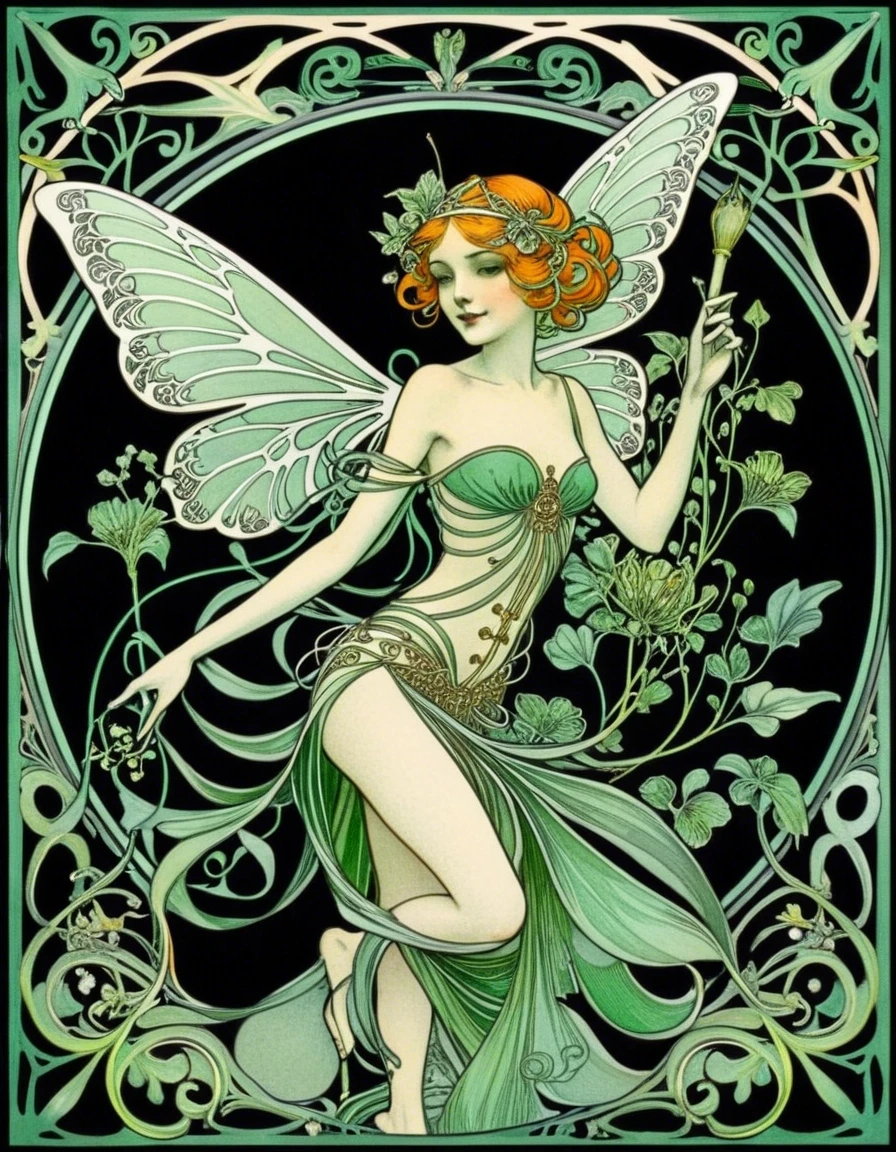 (Using the above image) |
 |
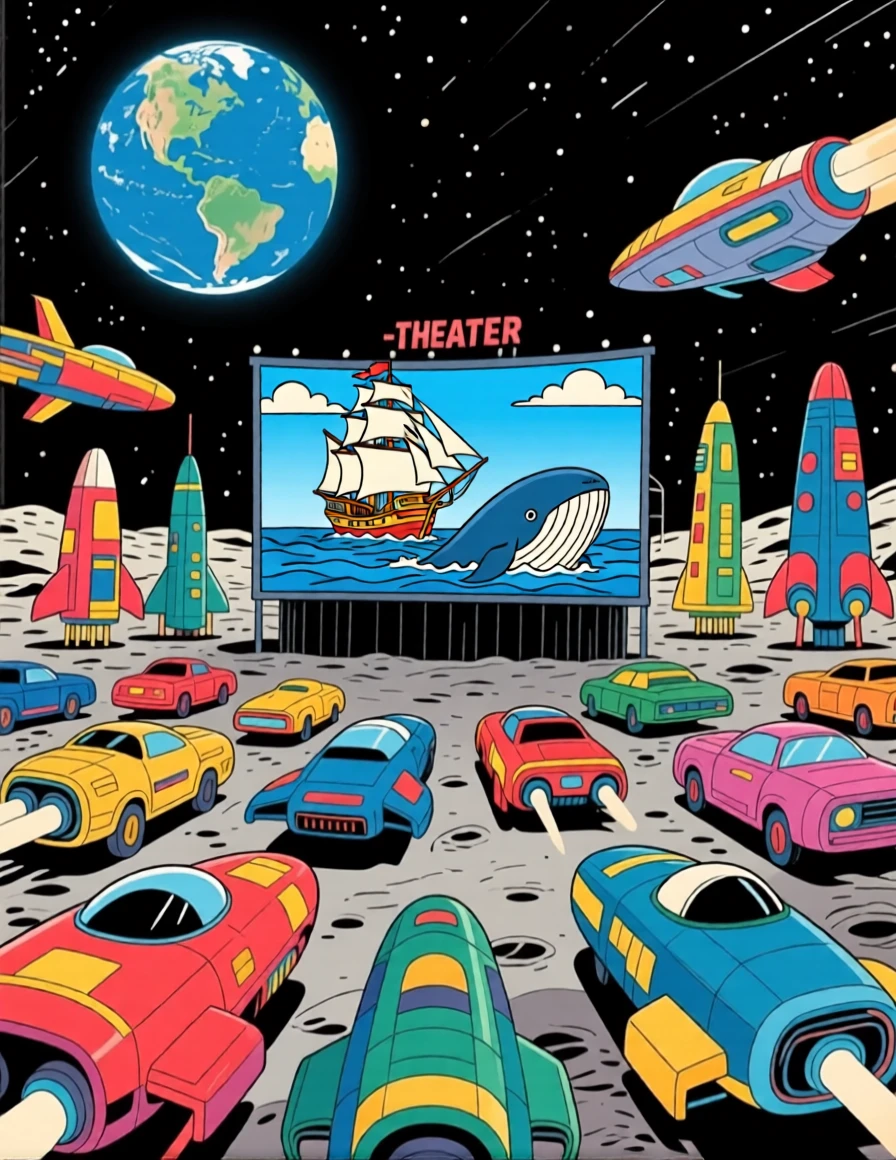
¶ 5) Break a complicated render into 2 easier steps:
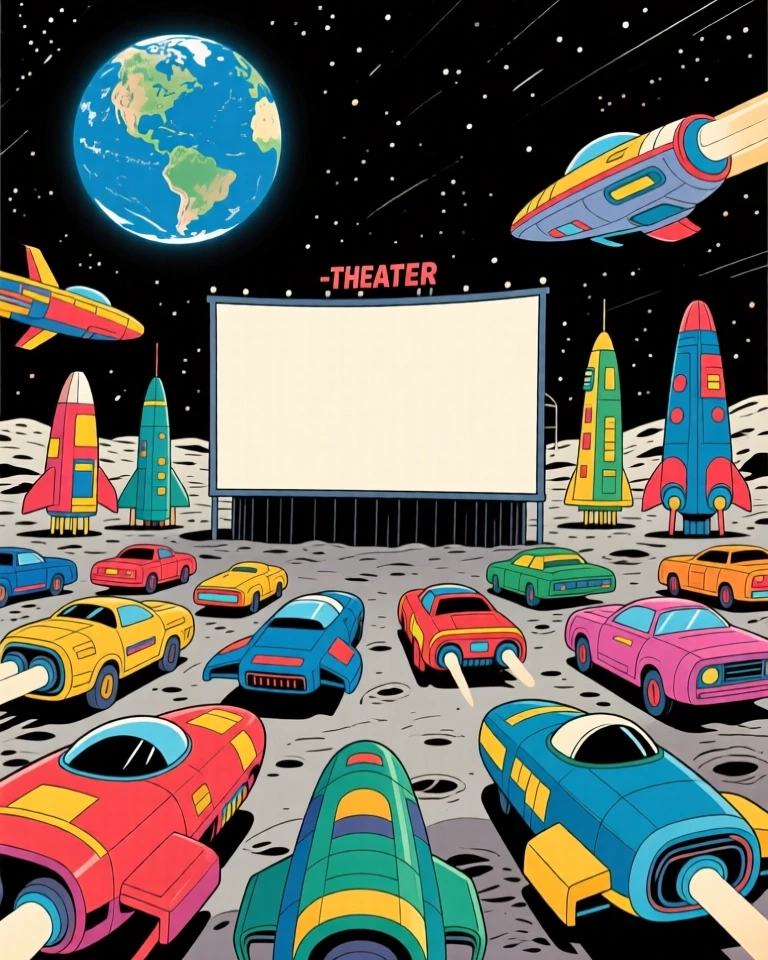 (Using the above image) |
 |
¶ Things to know about Qwen Image Edit:
¶ 1) The size of your render depends on the size of your initial image.
If your initial image is 768x960, your render in Qwen Image Edit will be 896x1160. Why? Qwen Image Edit creates images in the same aspect ratio as the original, but the pixel size is approximately 1 million pixels (1024x1024). The 768x960 image has a 4:5 aspect ratio. The closest size to 1 million pixels with measurements divisible by 8 and a 4:5 aspect ratio is 896x1160.
¶ 2) Changing the Guidance Scale has more impact with Qwen Image Edit than with Qwen Lightning
.jpg) (Using the above image) |
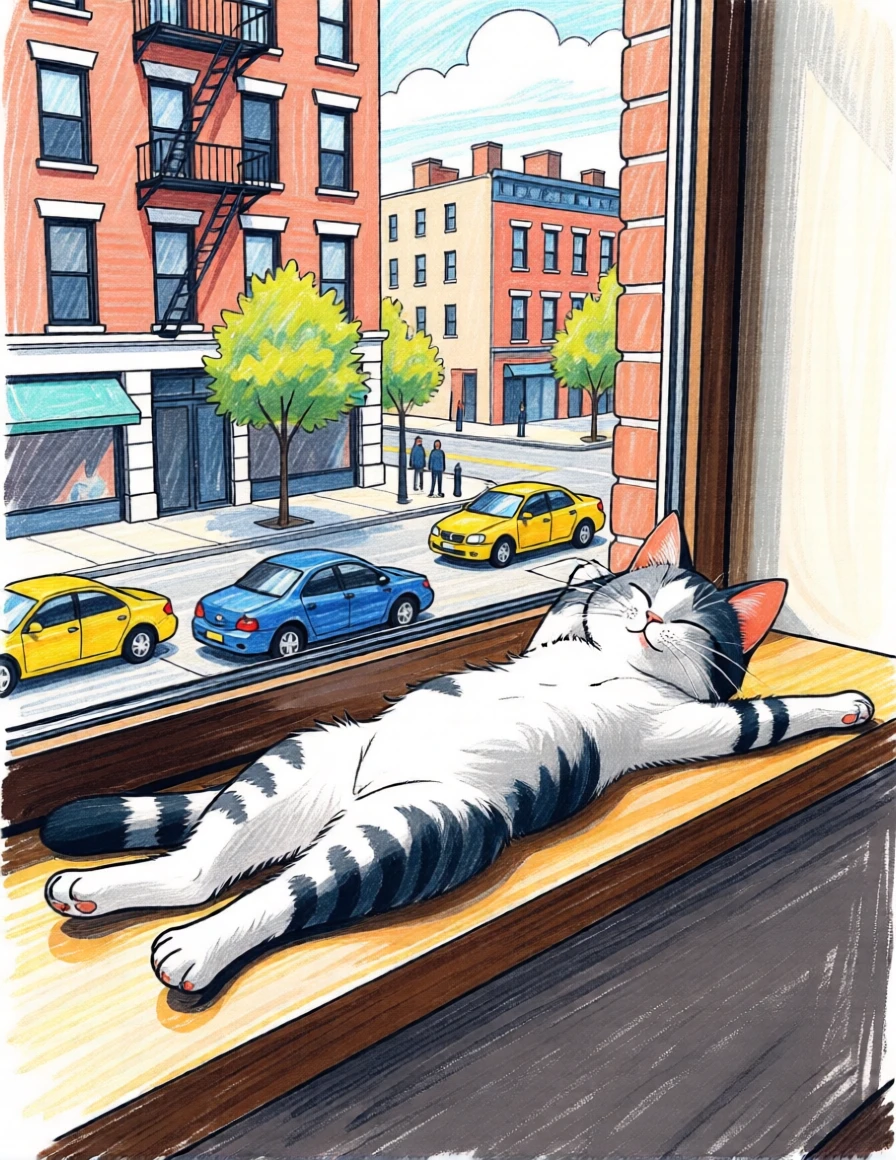 |
| (Using the above image) Prompt: this cat should be stretched out on a window sill in an urban street, in a painterly modern pencil sketch Negative Prompt: - Guidance Scale: 2.5 |
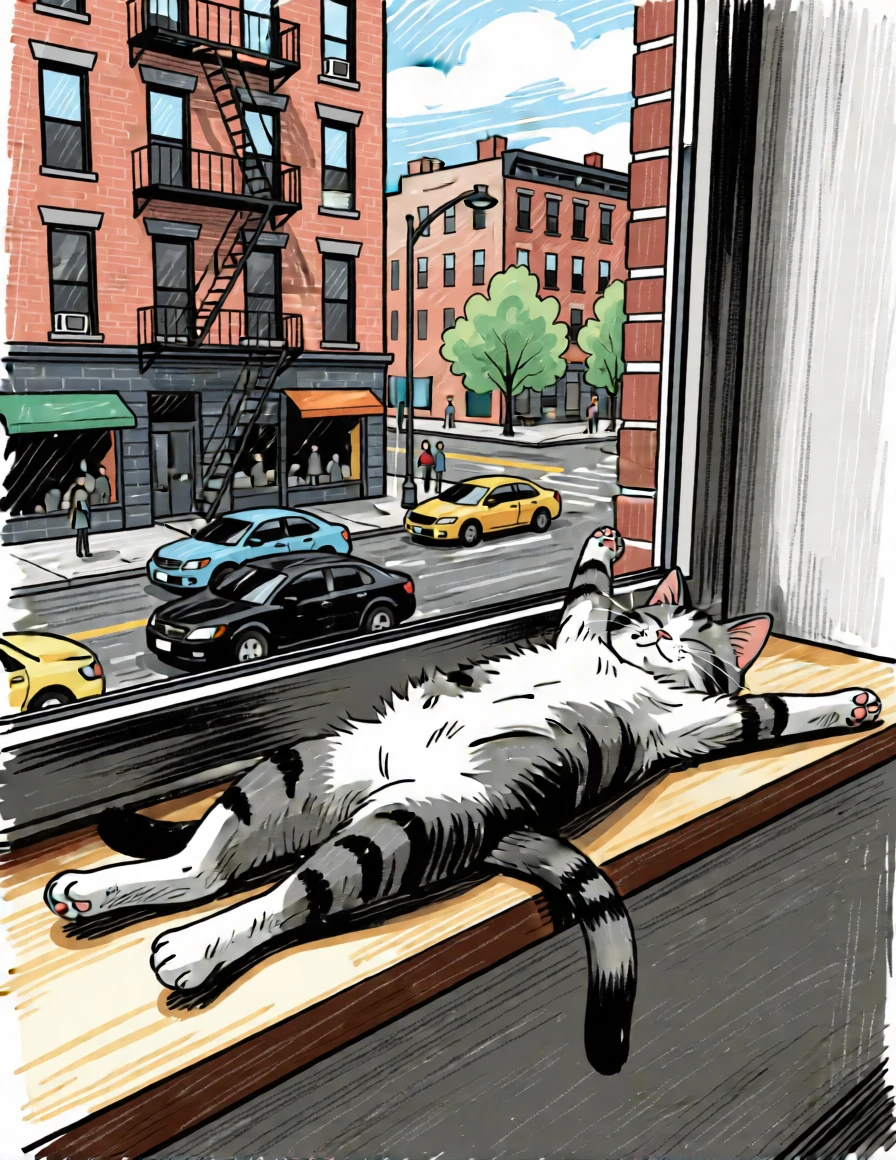 |
| The style of the image is different when the Guidance Scale is higher. | |