¶ Using Reference images with Qwen Image Edit
If you're not familiar with Qwen, you may want to check out this handy guide to the Qwen Lighting model or this page on Qwen Image Edit.
This page is dedicated to using Qwen Image Edit with multiple images.
¶ Things you can do with Qwen Reference Images:

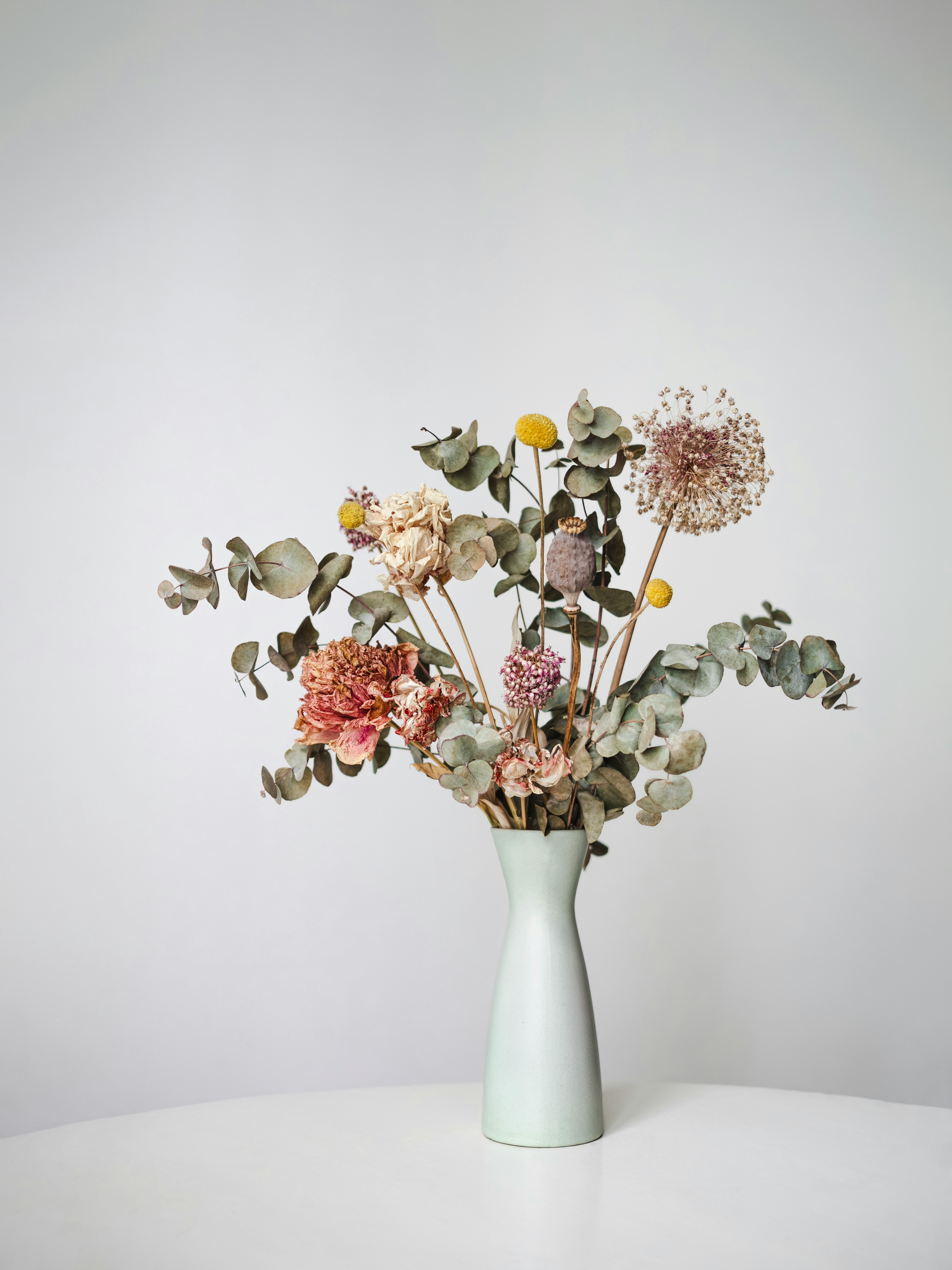
1) Product Placement
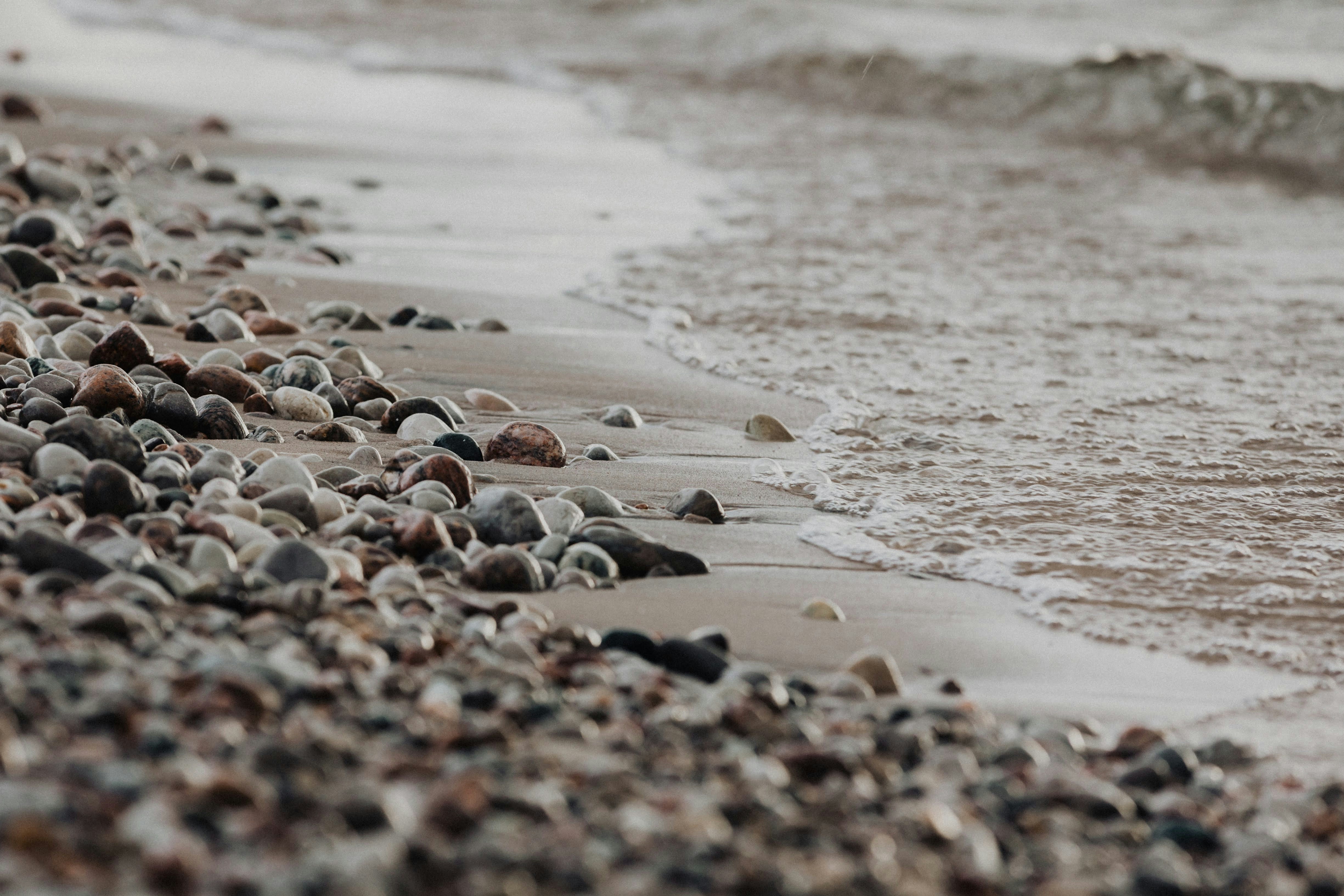
Even a complicated shape like this can be moved onto the scenic background of your choice.
Please note, the proportion of the first image will dictate the proportion of the final image.
|
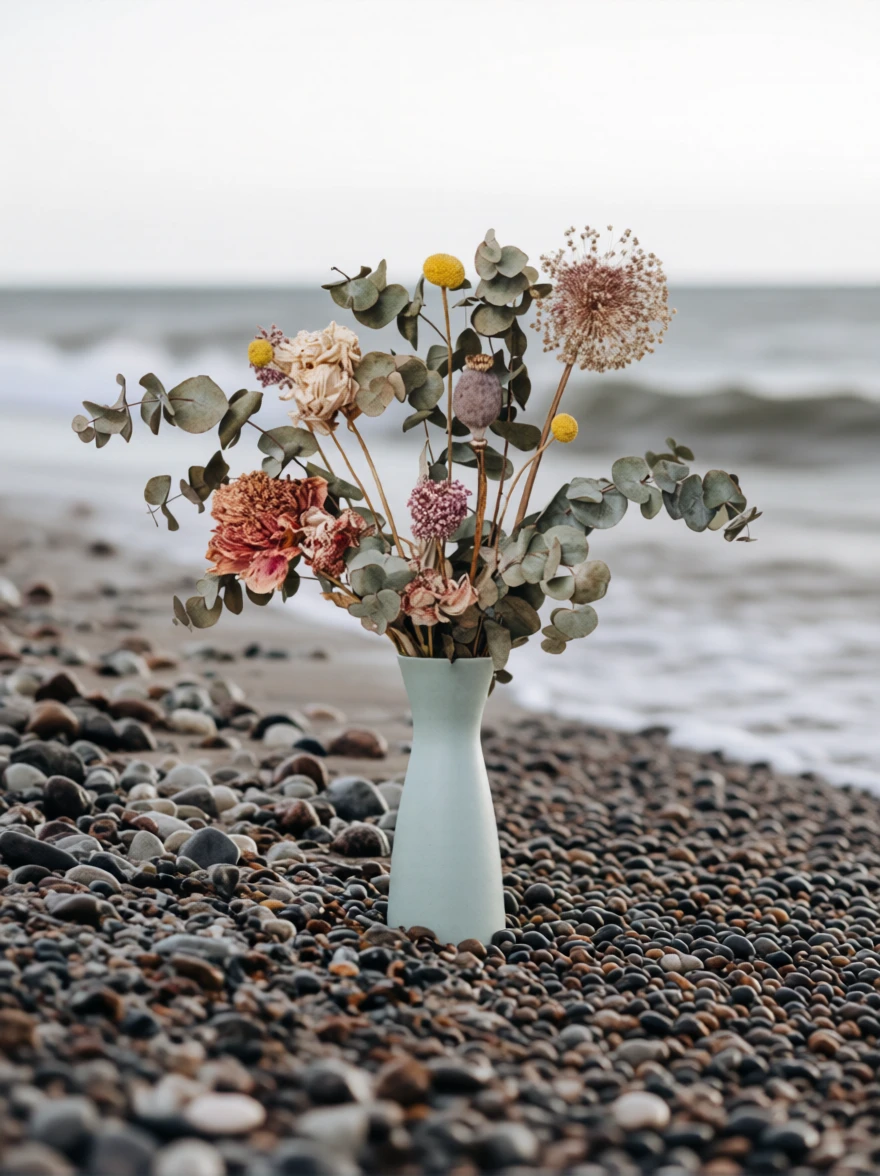 Prompt: add the vase of flowers to the rocky beach |
|
¶ 2) Scenic Selfies
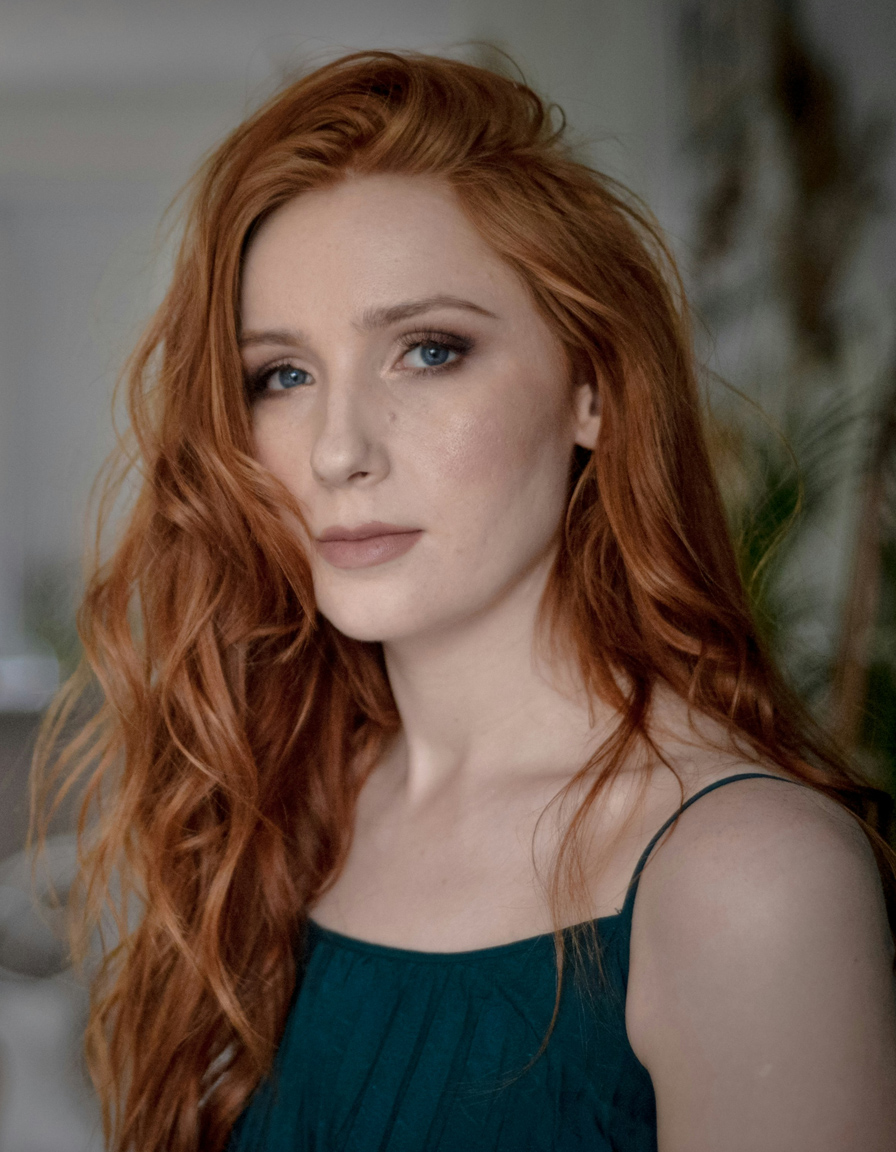
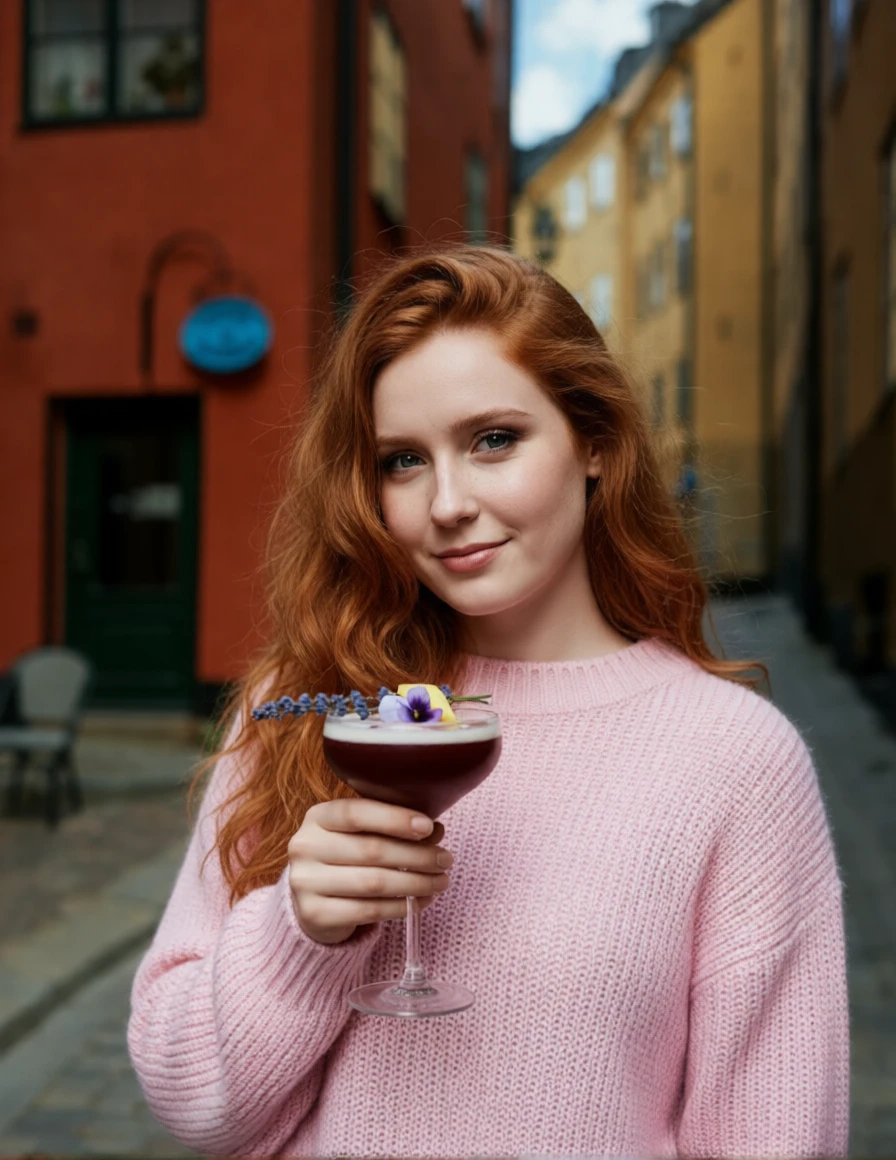
Note the phrase “lighting adjusted to blend naturally”. This tells Qwen to adjust the lighting to bring all the images together.
|
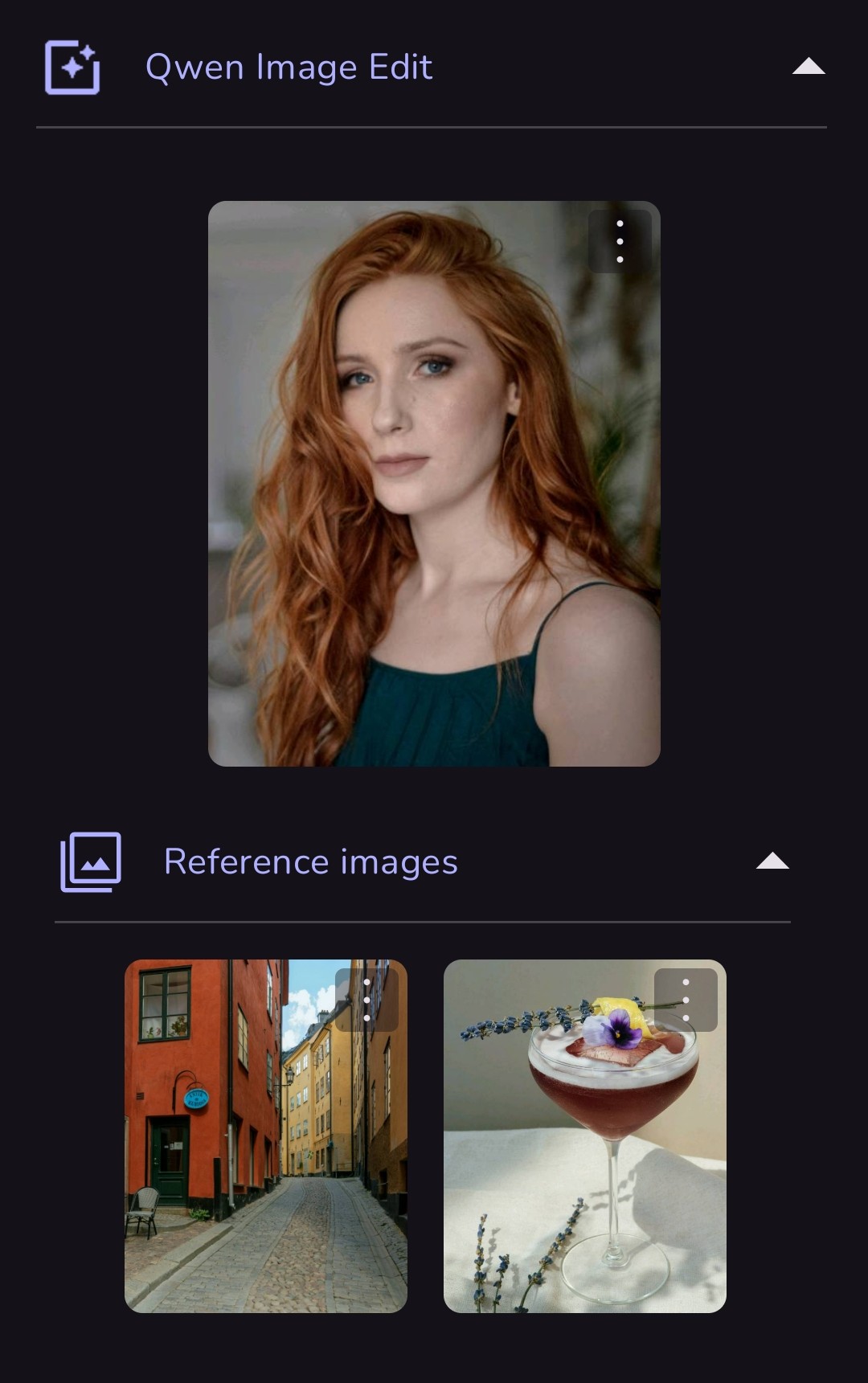 Prompt: give the girl a pale pink fuzzy sweater, have her holding the cocktail, slight smile, standing in the urban setting, close portrait, with cinematic lighting adjusted to blend naturally |
.jpg)
|
|
 |
|
.jpg)
|
|
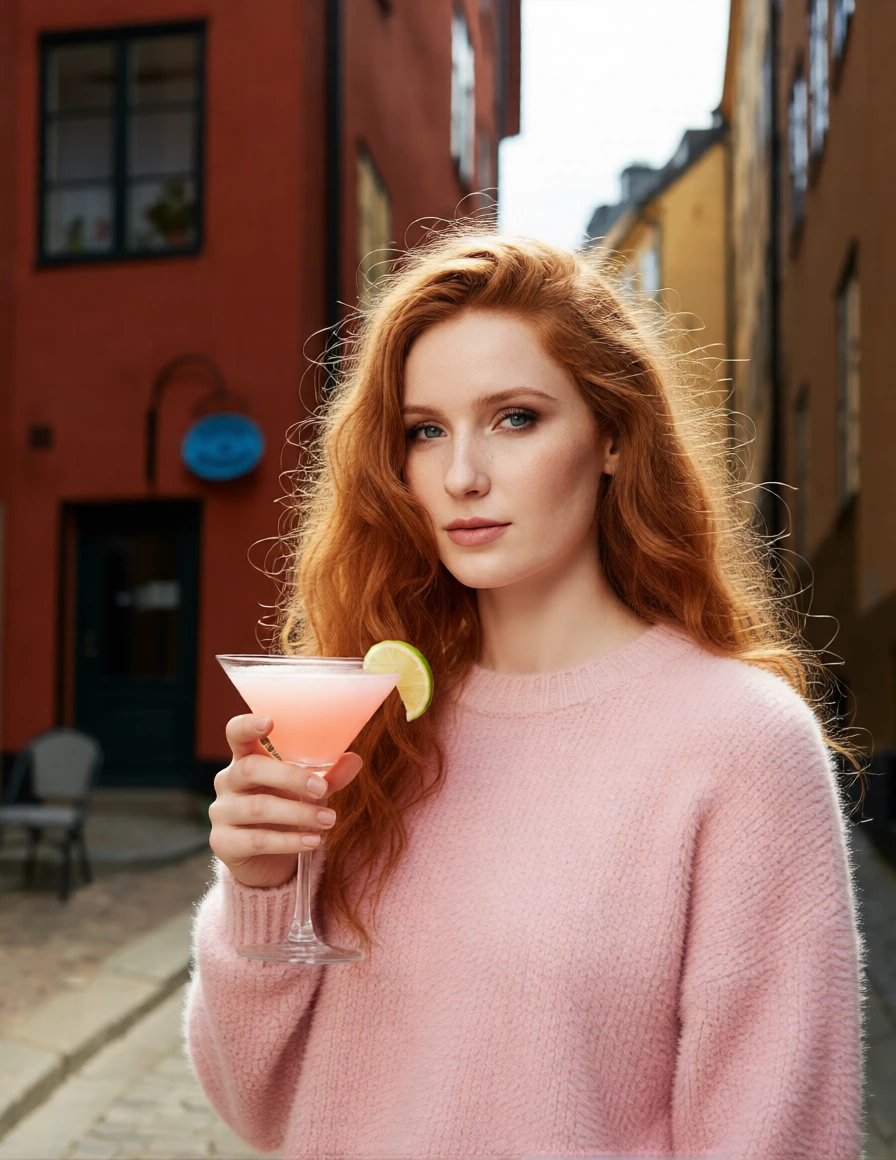
| This second version has a different prompt (and a different cocktail). This time, I asked for sunlight. | |
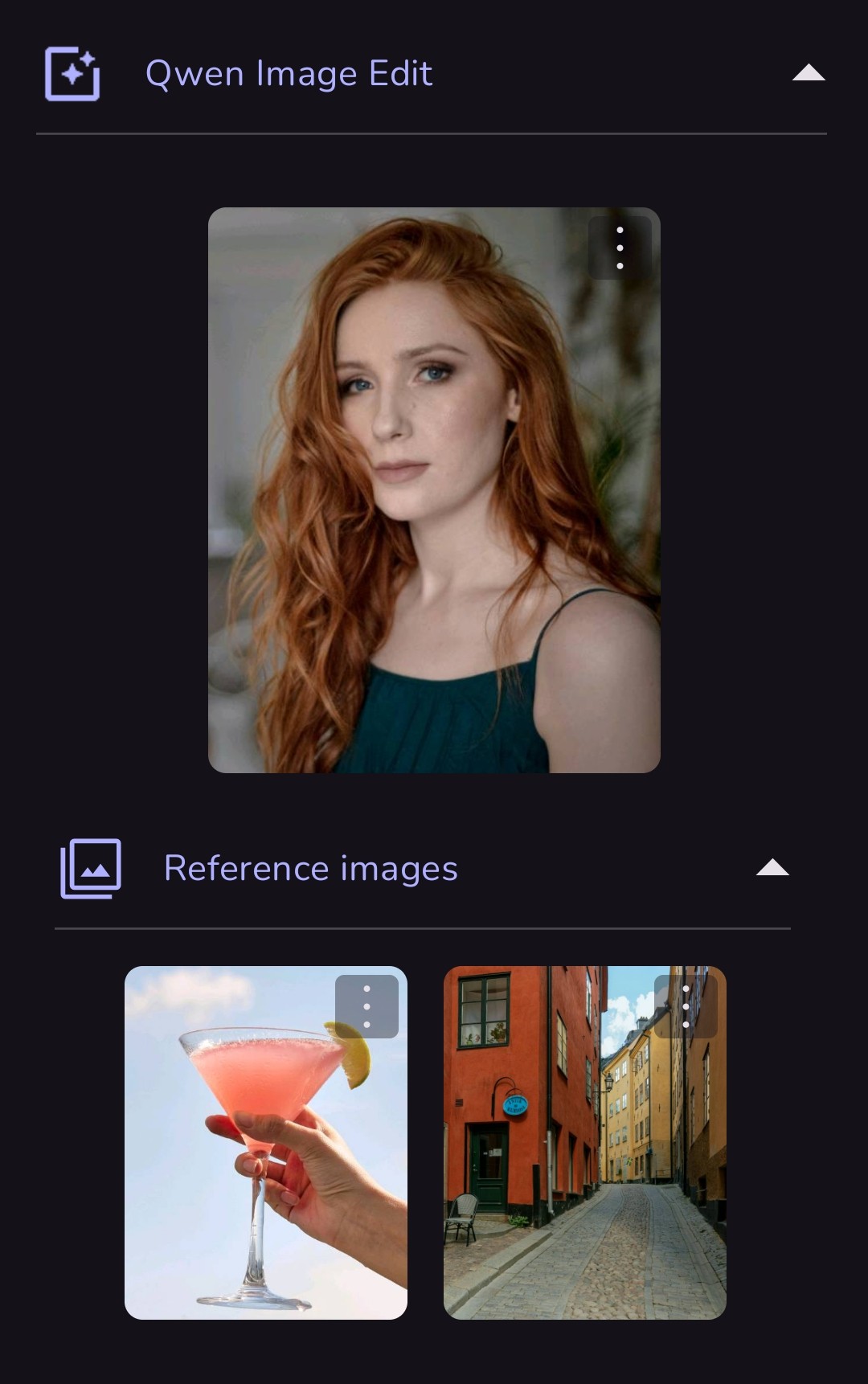 Prompt: give the girl from image 1 a pale pink fuzzy sweater, have her holding the cocktail from image 2, standing in the urban setting from image 3, close portrait, in the sunlight, lighting adjusted to blend naturally |
 |
¶ 3) Combining Characters
Qwen can combine up to 3 characters beautifully. In this example, 2 anime characters are combined with a photorealistic woman using a simple prompt, yet all 3 have the correct features and look great together.
| Prompt: put all 3 characters together in the same scene. they should be gathering flowers from a wildflower field. | ||
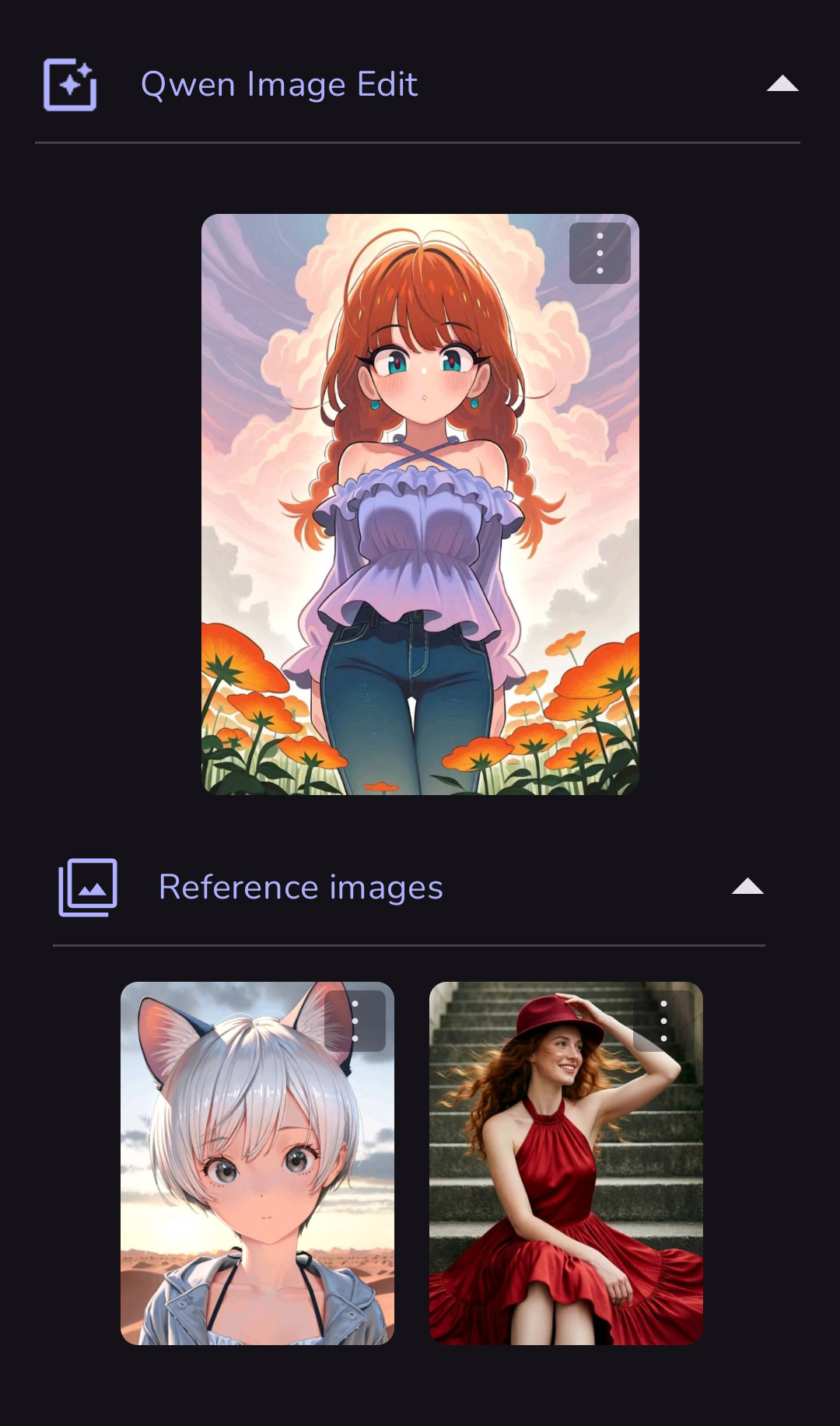 |
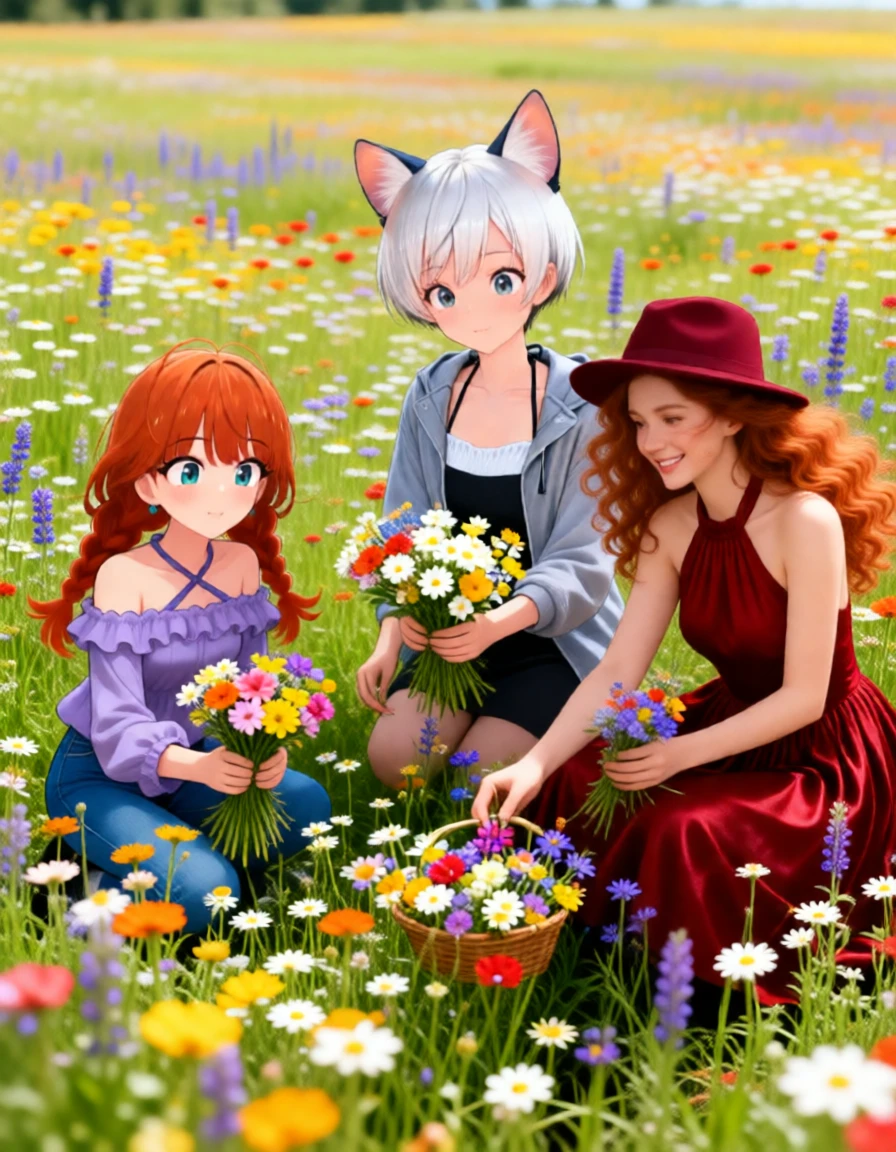 Guidance Scale: 1.0 |
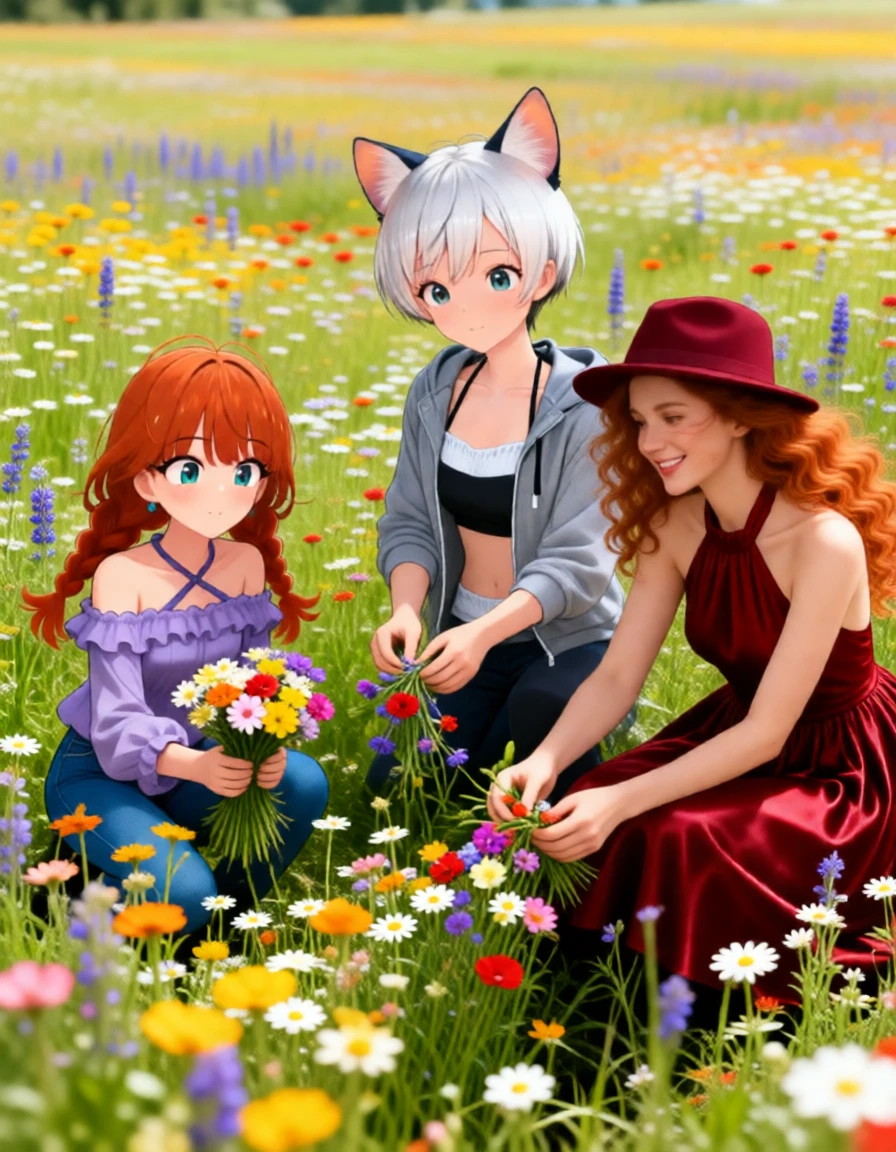 Guidance Scale: 1.3 |
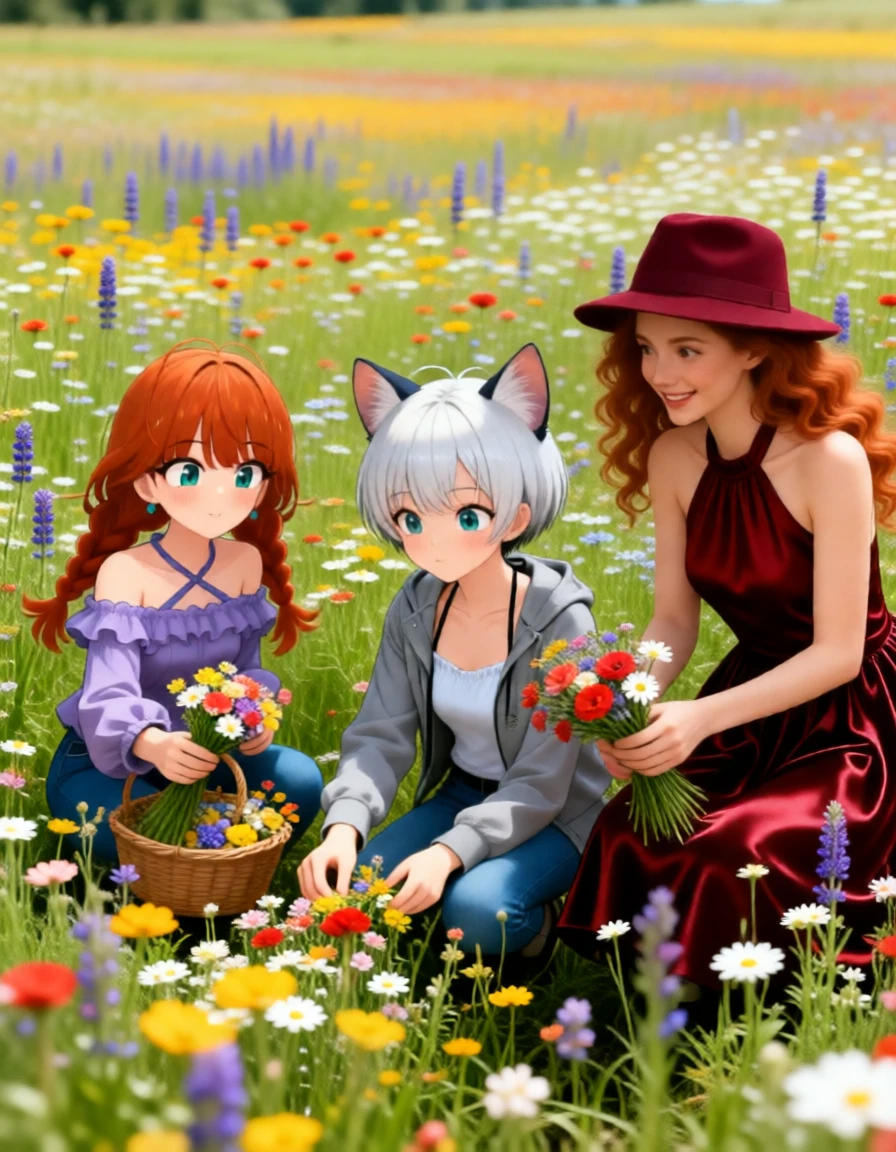 Guidance Scale: 2.0 |
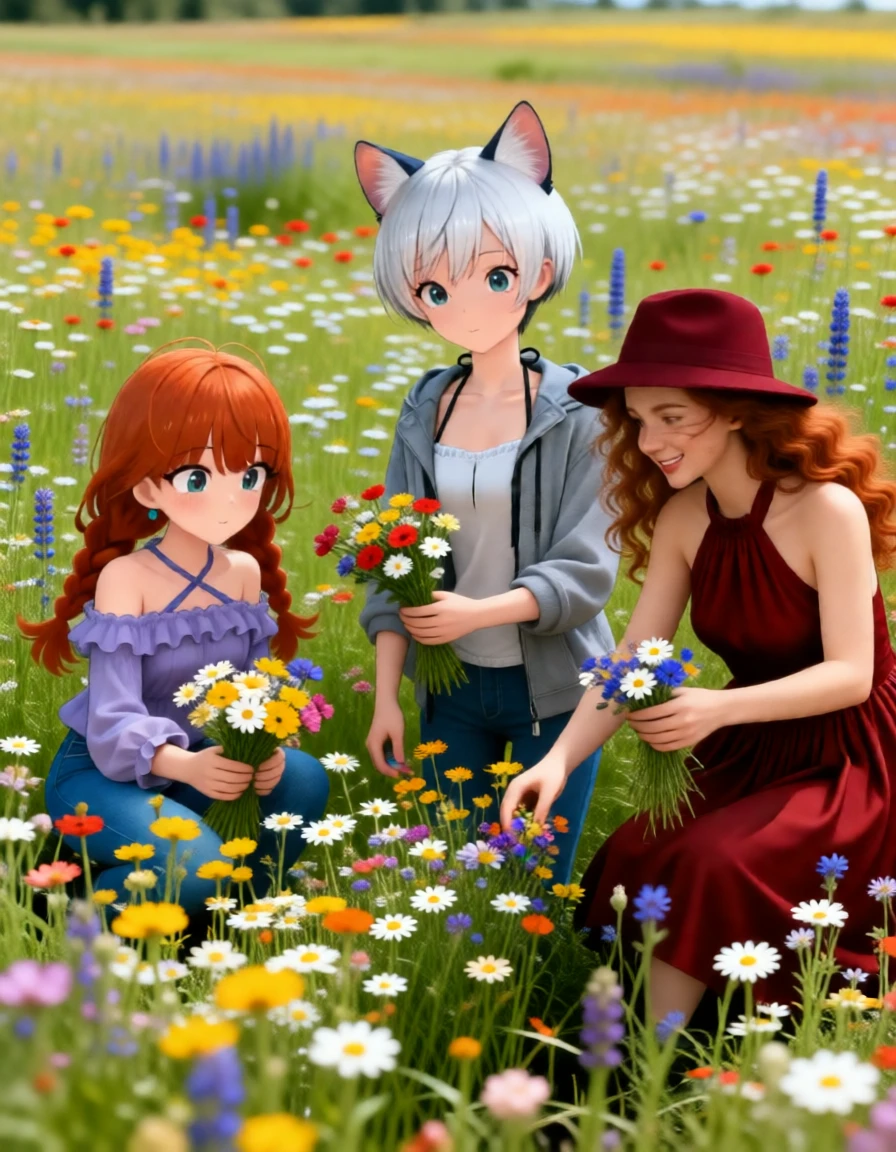 Guidance Scale: 2.8 |
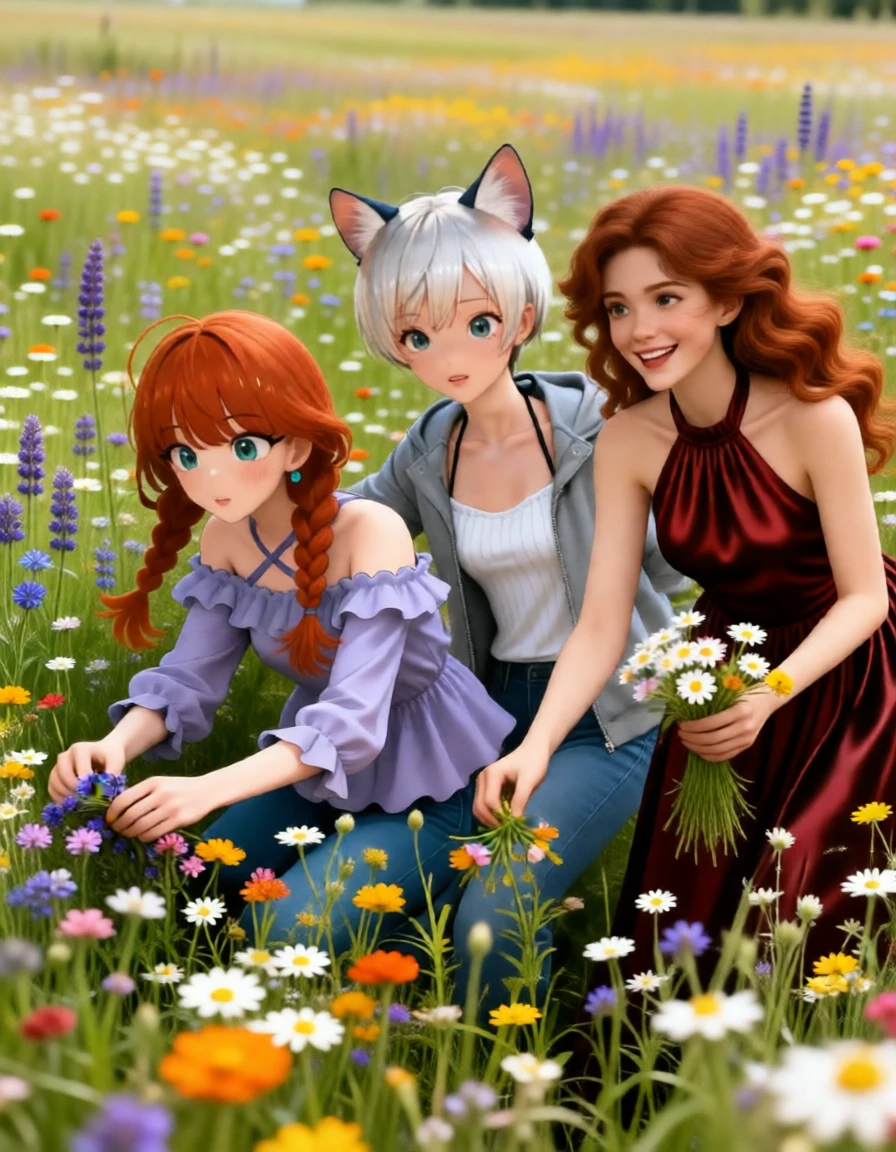 A different seed. |
¶ 4) Virtual Fashions and Fantasy Locations
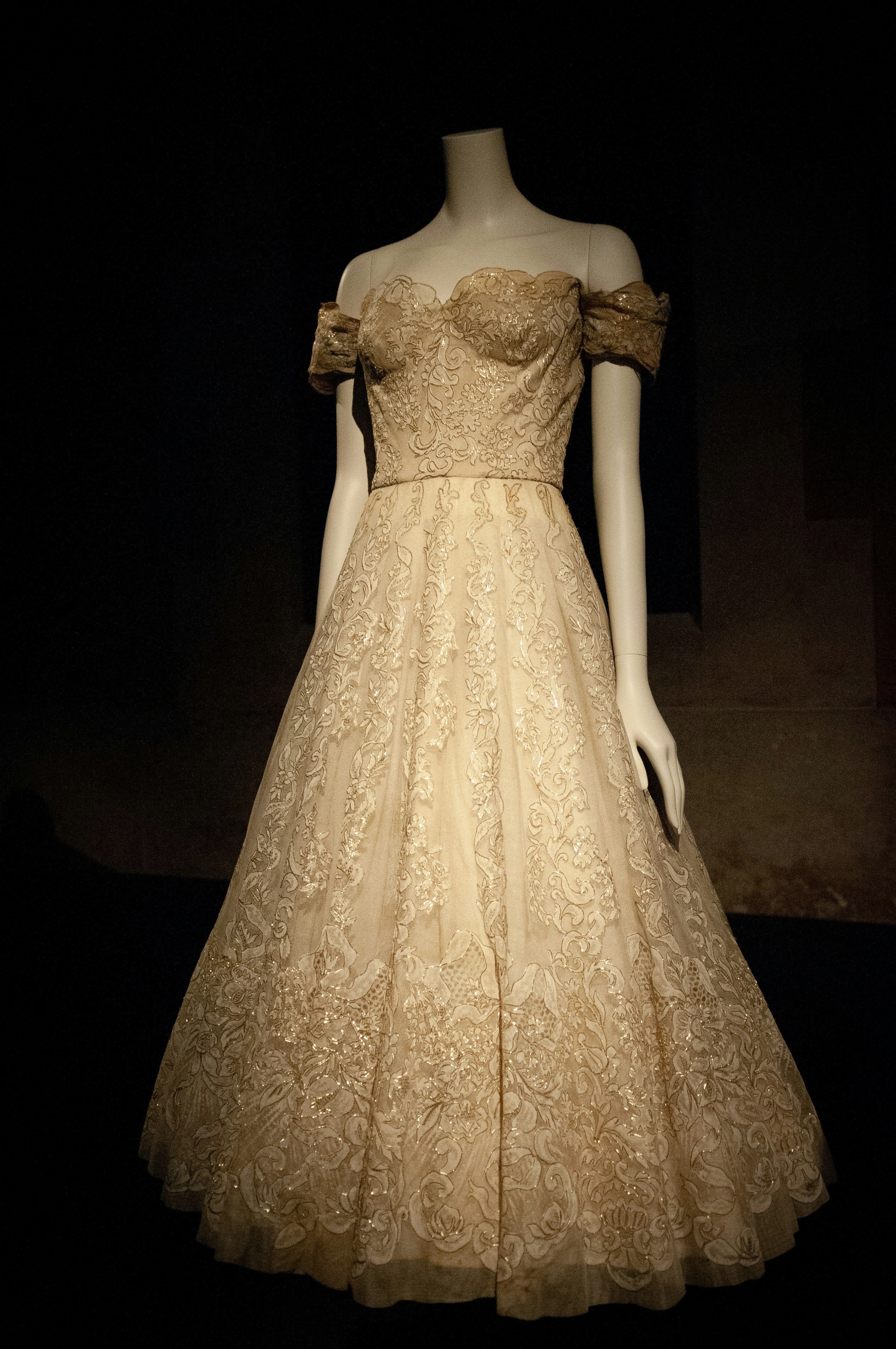
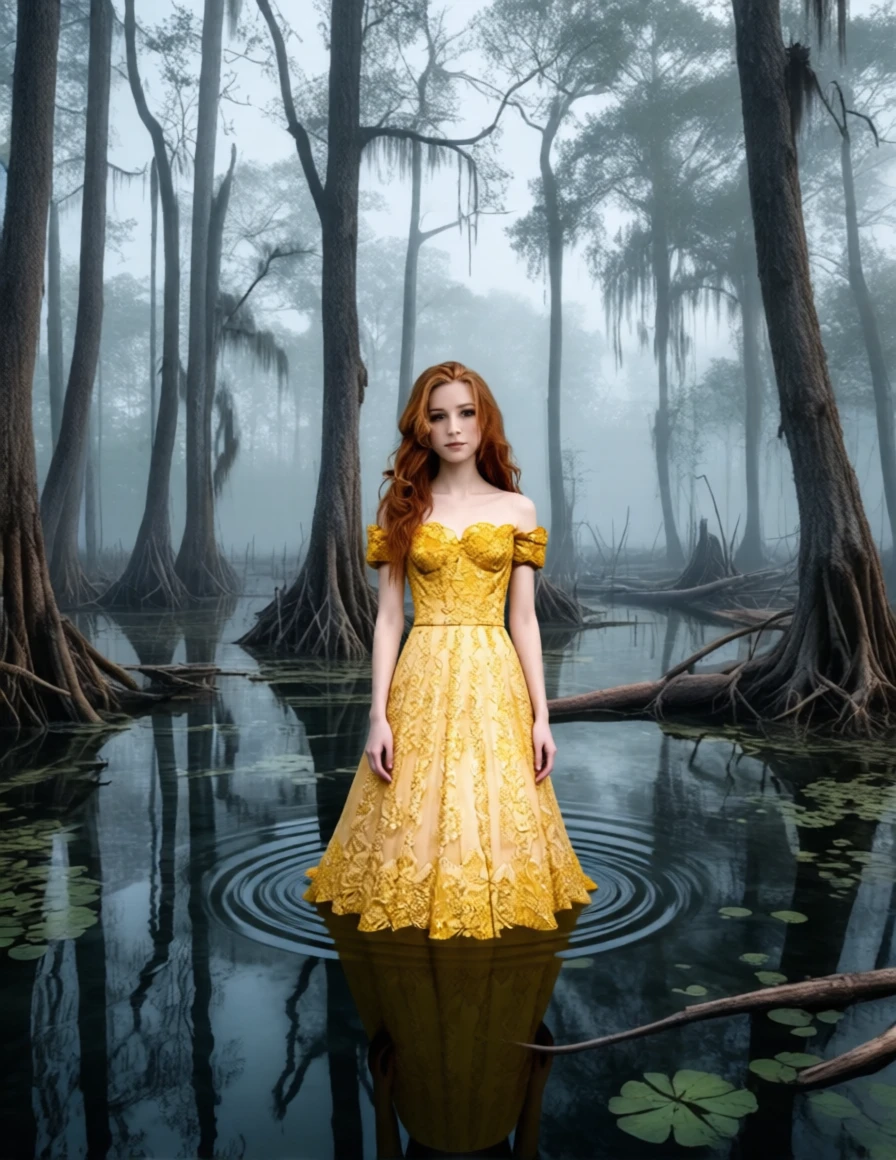
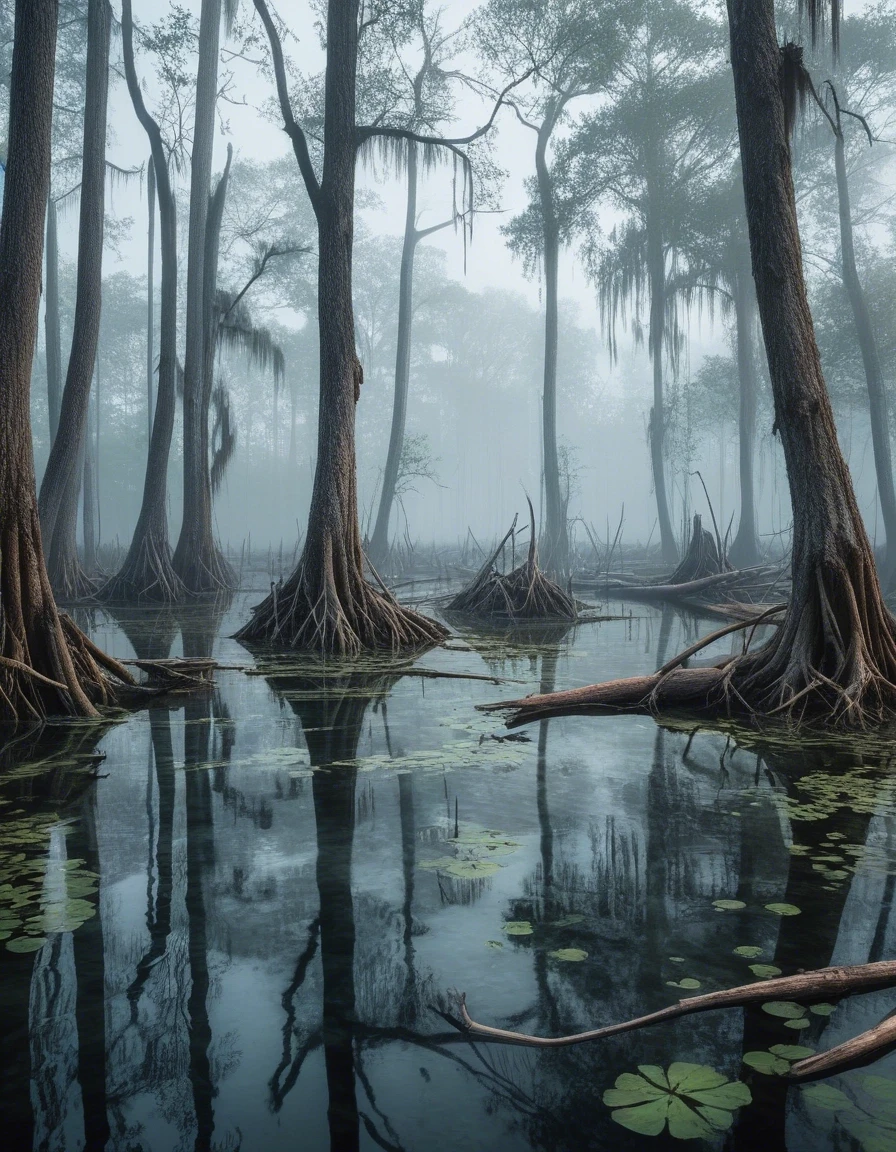
In this example, the beautiful redhead will model a vintage lace dress in a fantasy swamp.
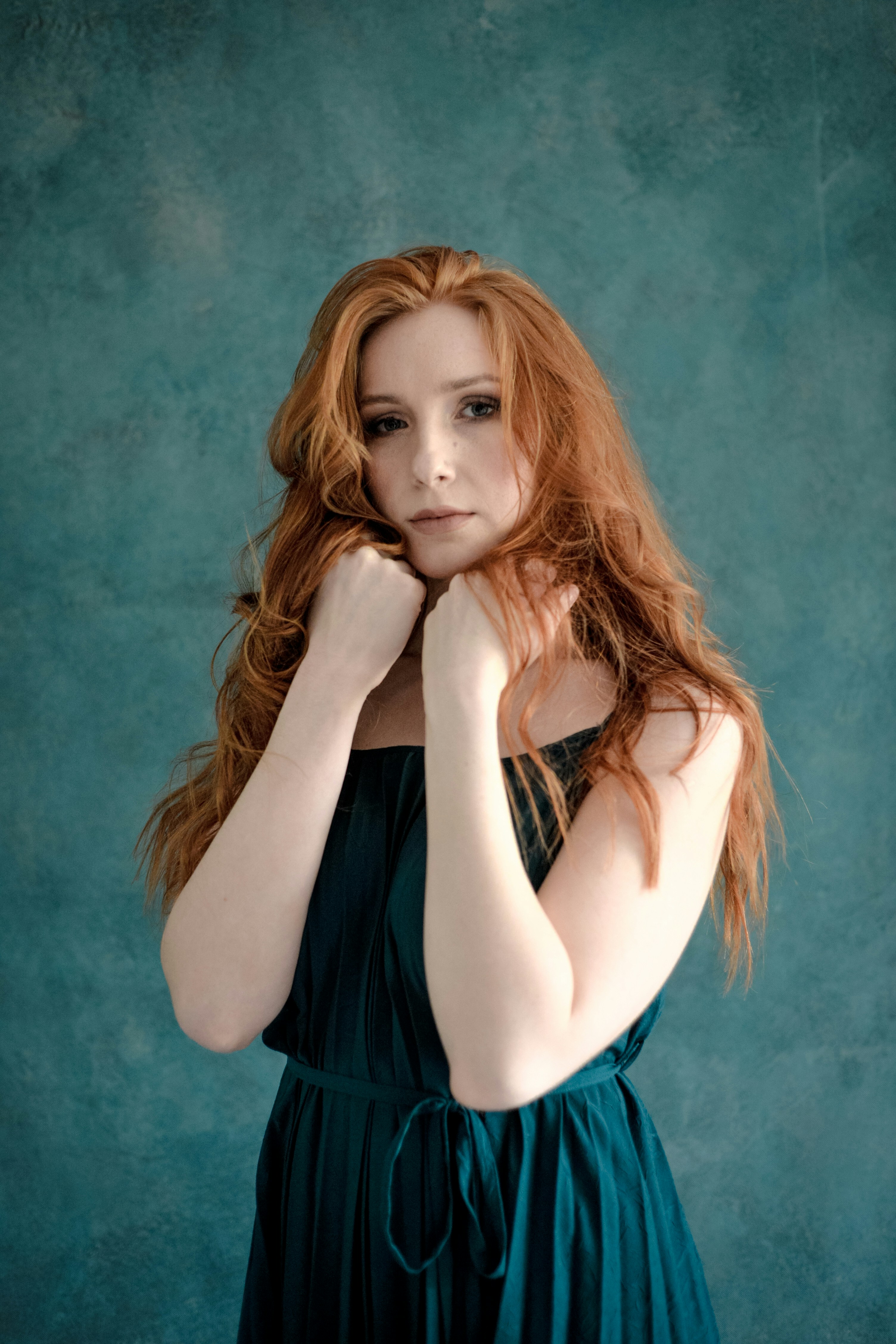
|
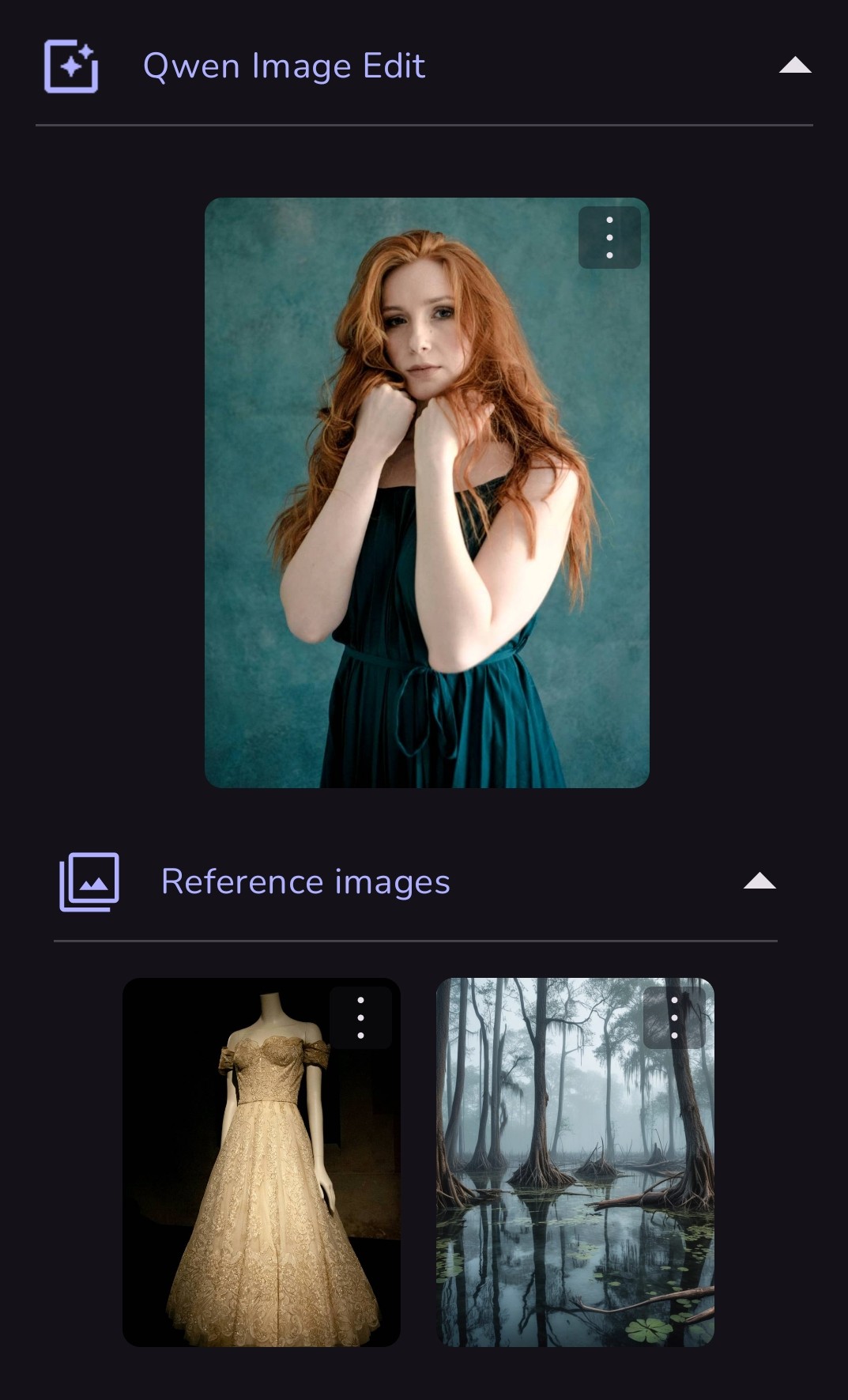 Prompt: the woman should be wearing the lace gown and standing in the swamp. close portrait. |
|
|
 |
|
|